
Epson SureColor P900 Review: A Worthy Successor to the P800 and 3880?
After 50+ prints across glossy, luster, baryta, metallic, and textured matte papers, the Epson SureColor P900 has proven capable of outstanding results. The larger lesson is that paper choice, ICC profiles, media settings, rendering intent, and borderless expansion can matter more than the operating system or the printing application.
TL;DR ⚡
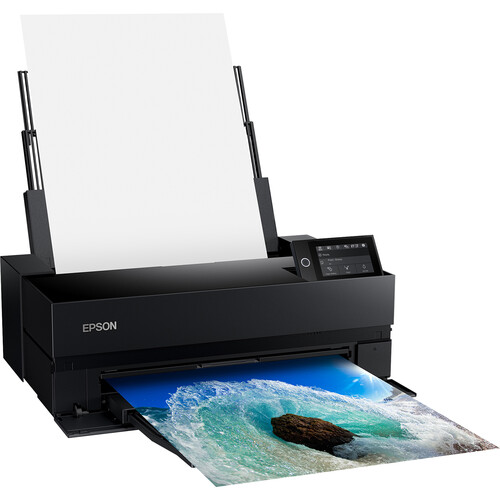
The P900 is a predictable, versatile 17-inch fine-art printer capable of superb output. Correct profiles and settings produced closely matched results from Windows, macOS, Photoshop, and Epson Print Layout. Black improvement is the biggest difference - days of wasting ink and waiting for swapping between photo and matte black ink are over and carbon black setting result in the best DMax ever for Epson.
Table of Contents
Who it’s for
- Photographers producing exhibition-quality prints up to 17 inches wide.
- P800 or 3880 owners who want improved black performance and improved range of color.
- Users printing on premium papers like baryta, metallic, and textured fine-art media.
- Photographers willing to use ICC profiles, soft proofing, and controlled print settings.
Who should skip
- Anyone looking for inexpensive, low-maintenance casual printing.
- Users who do not want to manage profiles, media types, and application-versus-driver color settings.
- Photographers who routinely need output wider than 17 inches.
- Enthusiasts who can't see the difference between discount prints and premium color managed prints.
✅ Pros
- ✅Excellent output across varied mediaStrong color, tonal separation, and detail on glossy through textured matte papers.
- ✅Dedicated Photo Black and Matte BlackParity with Canon so no more costly and time consuming swaps between black ink types.
- ✅Strong color and monochrome workflowsImproved color gamut and Advanced Black & White Photo mode continues to produce excellent results.
- ✅Epson Print Layout reduces setup riskIt keeps more of the relevant print controls visible in one application.
- ✅Epson Media InstallerFinally Epson catches up with Canon's Media Configuration Tool to control media handling settings.
⛔ Cons
- ⛔On my systems, wireless printing failed to work on Windows 11Unlike the P800, wired USB was the better route for me with the P900.
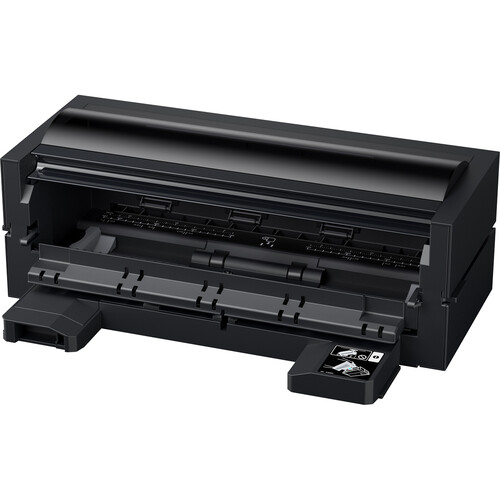
- ⛔Poor Roll SupportP800 roll adapter isn't compatable, so a new P900 adapter is required that still lacks a cutting solution.
- ⚖️macOS wireless reliability needs more testingDuring a Cold Press Natural print, wireless triggered one 'device restarted' error from the sheet feeder.
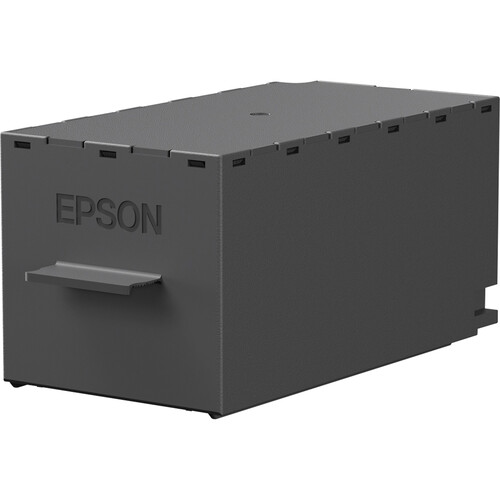
- ⚖️Operating costMaintenance-box needed replacement after only 30 prints, and starter inks were almost exhausted.
What I Tested
- Print set: 30 tracked prints, plus 20+ untracked prints made between May 9 and June 12, 2026.
- Platforms: Windows 11 and macOS Tahoe.
- Applications: Photoshop 27.8/27.9 and Epson Print Layout 1.5.15/1.5.16.
- Drivers: Epson Windows driver 6.12.00 and Mac driver 13.26.
- Rendering: Relative Colorimetric, Perceptual, Saturation, and Advanced Black & White Photo.
- Media: Epson Luster, Cold Press Natural, Legacy Platine/Baryta/Etching/Fibre, Metallic Glossy/Luster, Photo Glossy, Premium Semi-Gloss, and Hahnemuhle Photo Rag Metallic.
Setup, Software & Color Management
The Windows driver will look familiar to experienced Epson users. For a Photoshop-managed workflow, the exact printer-and-paper ICC profile is selected in Photoshop, Black Point Compensation is enabled, the matching media type is selected in the driver, and Color Adjustment is set to Off (No Color Adjustment).
The Mac driver exposes the same essential controls with a different presentation. Epson Print Layout offers the cleaner single-application workflow because the image, profile, media type, layout, and output settings stay visible together. I found no print-quality reason to prefer Windows or macOS: with matched settings, the scanned evaluation prints closely matched.
Epson Print Layout vs. Photoshop
Both produced strong results when configured correctly. The practical difference is workflow safety: Photoshop is more flexible, but it is easier to create contradictory settings between Photoshop and the driver.
Paper Matters More Than the Application
The clearest visual changes came from paper surface and paper white. Legacy Platine and Baryta produced rich contrast; Metallic Glossy was punchier; Legacy Etching and Fibre changed perceived contrast, black depth, and fine detail through their matte texture. The right question is not which paper wins, but whether the P900 preserves convincing color, tonal separation, and detail on each surface. It does.
Quality Level 5 Carbon Black vs. Maximum Quality
Both settings produced excellent results with Carbon Black offering better DMax which most will only see if they measure the output with a spectrophotometer. The average person won't see the difference, so if you fall into that camp then just using LEVEL 5 Maximum Quality will save a little ink. Personally, I use Carbon Black as often as I can.
Rendering Intent Comparison
The cleanest direct comparison is Relative Colorimetric versus Saturation on Epson Metallic Photo Paper Glossy (prints 14 and 15), which share the same paper and quality setting. The Perceptual examples below were printed on different papers, so they show how that intent behaved across the broader test rather than serving as a strict intent-only comparison.


The differences among these scans are generally smaller than the differences produced by changing paper surface and paper white. Prints 8 and 10 show Perceptual succeeding on baryta and textured matte, but should not be used to attribute every visual difference to rendering intent alone.
Print Quality Findings
Rendering Intent and Gamut
Rendering-intent differences were smaller than paper differences on much of the evaluation target. The football portraits were a better stress test: saturated blues could shift toward purple when the source exceeded the printable gamut. Changing intent and correcting the source improved the result but did not eliminate every issue. Perceptual is not a repair button; soft proofing, gamut warnings, and selective file correction still matter.
Black and White Printing
Print 16 used Epson Advanced Black & White Photo mode on Legacy Etching with a Warm/Dark treatment, producing a result that felt intentionally photographic rather than merely desaturated. Print 17 complements it with a black-and-white image on Legacy Platine, where the smoother photo-black surface gives deeper-looking blacks and a more traditional presentation. A neutral ABW comparison is still needed.
Borderless Expansion
A Lightroom Classic Print module makes borderless a real pain IMHO. Epson Print Layout and Photoshop make it much easier, but automatic expansion cropped more than I would have liked. Images with important edge content should be tested with Minimum Expansion or Retain Size rather than accepting the default expansion.
Reliability and Maintenance
Most sheets fed normally. One of my Cold Press Natural prints via Epson Print Layout on macOS Tahoe produced one 'device restarted' error from the sheet feeder, while a later attempt via USB worked without issue. At print 30 the maintenance box was reported near end of service life. Because print 1 was not literally the printer's first print, total history, cleaning cycles, initial charging, and prior maintenance-box use must be established before drawing a cost or reliability conclusion.
What Online Images Can and Cannot Prove
Scans can compare gross color, contrast, paper white, rendering problems, and workflow failures. They cannot faithfully reproduce gloss differential, metallic sheen, surface texture, deep-black appearance, or changes under different lighting. Final comparison photographs should are best viewed with a proper white balance under controlled lighting (e.g., a GTI Lightbox).
Real World Shots 📷
The photos below are real-world samples. Click any photo to open the original size.
Click here to view the entire gallery of images taken for this review.
Visit the gallery for a sample of Epson v750 scans of prints made during this review

Visit the gallery to view a wide selection of scans made of the prints done during this review. Please refer to the filename legend in the gallery to decode the settings for each print. Click the photo to open the original size 👆
The Windows Epson driver, with media, mode, quality, source, and color-adjustment controls visible.

For Photoshop-managed color, the driver must use Off (No Color Adjustment) to avoid double color management. Click the photo to open the original size 👆
The matching macOS driver exposes the same essential controls with a different presentation.

The closely matched results make platform choice a workflow preference, not a print-quality decision. Click the photo to open the original size 👆
Advanced Black & White Photo mode on Legacy Etching with a Warm/Dark treatment.

The warm treatment and matte texture reinforce the vintage character. Full workflow: How To: Using Epson's Advanced B&W Photo (ABW). Click the photo to open the original size 👆
Print 17 is a great black-and-white example that shows off the deep DMax, this time on smoother, photo-black Legacy Platine.

Compared with textured Legacy Etching, Platine gives the monochrome image a smoother surface, deeper-looking blacks, and a more conventional photographic character. Click the photo to open the original size 👆
A small section of my favorite 13x19 prints that were family favorites for their amazing color

<strong>Print 25:</strong> Hahnemühle Photo Rag Metallic turned out
fantastic and will be framed.
<strong>Print 22:</strong> Epson Metallic Photo Paper Luster was claimed on the spot by my son for his personal use.
<strong>Print 20:</strong> Legacy Platine gave my favorite photo of my youngest daughter a result worthy of a prominent place in my studio beside my desk.
Click the photo to open the original size 👆
Prints 24 and 26 show the limits of correcting an intensely saturated source for a
metallic paper.
In this photo of my son Kai in his football uniform, the blues fall outside the printable gamut of Epson Metallic Photo Paper Glossy. I adjusted the file until Photoshop's soft-proof warnings were satisfied, but the corrected print still looked nearly the same as the first attempt.


As print 24 shows, clearing an on-screen gamut warning does not guarantee a corrected print.
I also went to Photoshop to print and changed the rendering intent from Relative Colormetric to Perceptual which was a mistake. This is totally my fault and I know better, but I was careless. It's a good reminder that even those with a lot of print experience can make mistakes too.
Paper, profile, neighboring colors, and viewing conditions matter, so a small proof print remains the decisive test. This user error can easily be handled by doing test prints using a series of small crops from problematic areas in a small print as I discussed in Printing 101 book.
The printing of the 17x22-inch, Print 30, on Ultra Premium Photo Paper Luster.

Like its predecessors, unless you are using thick substrates (paper) that scratch easily, it's safe to use the rear feeder for large prints. However, I did test and recommend the front manual feeder with lots of space behind the printer when using thicker matte finish substrates. Click the photo to open the original size 👆
The completed Print 30 did one of my favorite photos justice by producing outstanding color and detail

I loved this print. The compact P900 produced a result with enough presence and quality to stand beside one of my favorite large-format Canon PRO-2000 prints. An iPhone photo of a print will never do it justice compared to viewing it in real life under a GTI Lightbox. Click the photo to open the original size 👆
I love the new LED panel that displays the print and its settings while printing

You can swipe to get more settings while printing to ensure that the print received the correct settings right at the start of your print job while there is still time to cancel. Click the photo to open the original size 👆
My first two prints were a a status page and nozzle check on a piece of Velvet Fine Art paper I had lying around

Ink levels shown are how much ink I had in the cartridges that came with the printer, and the far right image shows that the maintenance tank started out nearly empty. Click the photo to open the original size 👆
Here's what the P900 network status page looks like

I flipped the paper and did a nozzle check on the bottom and all looked great, so it was time to print Click the photo to open the original size 👆
I was disappointed how quickly this message came up while there was still plenty of ink left

This makes me wonder if you'll need about 3 of these per ink set based on my experience. Fortunately they were only $26 USD at the time this article was written. Click the photo to open the original size 👆
No Carbon Black for you if you want borderless!

LEVEL 4, LEVEL 5 & LEVEL 5 [Carbon Black] will give you a warning and uncheck the borderless option for you if you try use it with these quality settings. Click the photo to open the original size 👆
I like to have detailed filenames, but they may not make sense to you so I created this Legend

Consider this as a good thing to print out using plain paper settings and a lower quality setting to simplify your experience while viewing the photo gallery Click the photo to open the original size 👆
Closing Thoughts
The Epson SureColor P900 has delivered consistently excellent output across a wider range of media than most
photographers will use regularly, and it worked well from Photoshop and Epson Print Layout on both Windows
and macOS. Correct profiles and settings produced close cross-platform results.
Compared with the P800 and 3880, my final recommendation is that it is a worthy upgrade thanks to improved media handling, dedicated photo and matte black to avoid the cost and delays of switching, physical size improvements, and a newer ink set that shows a visible advantage.
My experience is positive enough to recommend the P900 as a serious 17-inch desktop fine-art printer. The evidence supports a more useful conclusion than declaring every setting superior: the P900 is predictable, versatile, and capable of superb results when the person driving it chooses the correct media and color management settings.
Recommended Products



No comments:
Post a Comment