Showing posts with label Epson. Show all posts

Friday, August 7, 2020

Printing Your Memories with the EPSON SureLab D870

Click to see the EPSON SureLab D870 at B&H

Want to print a large number of photos blazingly fast at a price that doesn’t break the bank, yet has a professional look and feel? I did, so I wrote this review to see if the EPSON SureLab D870 lived up to its promises and my very high standards as a professional print master, print book author and Senior Program Manager of the Microsoft Windows print team for 3 years.

If you are here just for the review of this printer designed for professional photographers then you can skip the next section. If you are a photography hobbyist or someone with a lot of photos that you wish you had time to print, then you may enjoy the background story below about why I am writing this article.

Background Story

According to my photo library management software, Mylio, I have roughly 450,000 photos saved on my NAS and for my phones I have 100,000+ in Google Photos plus 22,000 in iCloud. Now out of those roughly 572k photos I’ve made about 30k public and shown my family about another 10k or so on top of that. Let’s assume I’m being too conservative though and say that the total number of photos seen by eyes other than mine is really 72,000 photos. That means I have a half million photos that have never been seen by others, and that’s from someone who is internationally known for photography AND printing!!!!

Now I will admit that because I shoot in burst mode, there’s probably plenty of photos that my eyes have only glanced at once or twice. However, this past March I had a lot of time to think as I drove from Seattle to Texas (and back) to bury my Dad. While I was at his place in a rural Texas town I found myself enjoying old family prints from the time before digital photography. It kinda hit me like a ton of bricks that I wasn’t judging these photos for their composition, sharpness, color, etc… – I was just enjoying the walk down memory lane.This reminded me of a common complaint from my wife who tells me “you have all those photos, but they are useless because I can’t even see any of them”.

Now we do enjoy plenty of photos on our Meural digital frames as well as the fantastic photo frame experience of the Google Nest Hub Max, so if you aren’t doing that I still highly recommend that. My wife enjoys printing her cell phone photos with her Epson PictureMate, and I’m a heavy user of my EPSON P800 and P5000 printers for my fine art photography work. However, there’s a decade of digital photos that live on my redundant NAS storage devices that really need to be combed through so I can print those memories to be enjoyed the good old fashioned way – by holding them in a hand – long after me and my NAS devices, digital frames and phones are long gone. More importantly, they need to be enjoyed by my kids and future grandkids (hopefully) as I have enjoyed the print photos my parents and generations before them took.

As I was driving through beautiful places like Moab, Utah during my long drive I got to thinking about how sad it would be if my family couldn’t enjoy the experience of seeing my photos because they got lost due to some digital tragedy after I was gone. Sure I have lots of digital backups, but what if those after me just simply stopped tracking all of that data and ultimately it was lost? What would be left? Just the prints – and most likely just the ones in good old fashion photo albums or printed photo books.

Now my success with this blog has given me a benefit many of you don’t have, so my cost at trying photo print services, printing photo books, archiving photos digitally, making professional prints, etc… is usually $0.00. With the cost excuse out of the way, I still have my wife complaining that she doesn’t know happened for most of the years we were dating and the first 10 years of my sons life outside of what you see on the blog (which is also what’s on our digital frames). Why is that? I have no excuses, right?

Well, it turns out that I still work 60+ hour weeks despite the fact that I’m not blogging like I used to. I’m also the father of 4 children which includes active 11 and 4 year old kids who need to spend time with Dad when he stops his workaholic days, so my free time usually begins around 10:00 PM at night (which was the start of my blogging work day years ago). Weekends end up being family time as well, so I’m lucky to get 20 minutes here, 30 minutes there to do activities that I enjoy – like editing or printing personal photos. With these constraints, I find myself getting deeper in the hole each month as I still shoot photos regularly, but I fail to find to edit or print photos that aren’t for my clients or blog. Simply put, my cherished personal photos don’t get prioritized – sound familiar?

Sure, I occasionally tell myself I’m going to do it and then I find myself falling into the second trap – I end up going through a few dozen photos and then spending all my personal time editing one or two of these photos. At this pace it would take me a few centuries to accomplish my goal of leaving prints that memorialize my wonderful life for generations that come after me.

When I had this discussion with my wife she challenged me – why don’t you just identify the best family photos and JUST PRINT THEM. She insisted – don’t waste your time editing them because its better to leave the memories behind than it is to have them lost because you couldn’t let the professional photographer inside you forgive yourself for not making professional images. She even went so far to remind me about my strict policy of publishing photos on the blog for camera and lens reviews that are 100% unedited (all are in-camera JPEG), so why couldn’t I do the same for my digital memories and “just print the damn things”.

Again, is any of this ringing a bell with you?

Well, its my own love of photo editing and desire to have my important pictures that have been a mental block keeping me from doing what I needed to do, so I made a pact with her and myself that I’d finally address this problem. My objective – to print my collection – but obviously not all 500k+ photos – just the memories through the years.

I started with my 2007 photos collection – the year I got serious about digital photography (after years of “thankfully” being a film photographer with prints – albeit very bad ones). After 3 months of pouring through – just that one years worth of photos – I identified about 460 images that seemed to be worth printing. I took 22,271 photos that year, so roughly 2% were what I’d consider “family classics” that I’d want to hand down to generations after me. They also represent just over an hour of printing by the amazing SureLab D870.

Wow – after the long battle of pouring through all of these photos – and admittedly probably spending too long in Lightroom doing minor tweaks on some of them – it took me 3 months to pinpoint the photos and a little over an hour to have a big stack of 4x6 prints to put in a photo album or at least a shoebox (guess what I actually did :). I didn’t have to then upload them to some service and fight with its UI, I didn’t have to deal with a ROES system for a service built for volume printing, I didn’t have to fight the crappy tools to build photo albums that never preserve my desired aspect ratios so I end up spending weeks to build a simply 20 page “book”.

No, this was much easier – I just dumped all of the files out as Full Size JPEG’s, went to the folder in Windows Explorer, selected all of the photos then did a right-click and Print (which launches the native Windows Photo Print Wizard). 

REVIEW: Epson SureLab D870

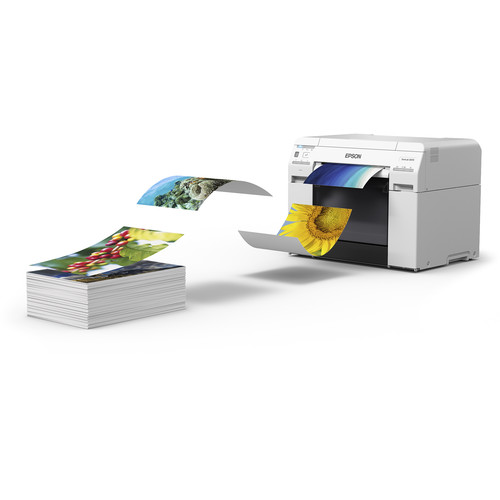
EPSON describes this printer as “The fast minilab printer for demanding small-format photo production”, and I’d say that actually hits the nail on the head. This six ink dye-based ink printer is optimized to print 4" x 6" prints in as fast as 8.3 seconds (using 720 x 360 dpi) and up to 430 4" x 6" prints, 275 5" x 7" prints, or 140 8" x 10" prints per hour – that’s screaming fast!!!

This means if you are a school, event or wedding portrait photographer you can print the bulk of your photos on this printer very quickly even if you have a huge amount of photos to print. What’s more, the Epson SureLab Luster Photo Inkjet roll paper and Epson UltraChrome D6r-S Light Ink Cartridges are extremely affordable, so you will not only save time but your cost per print will be peanuts compared to SureColor professional printers – yet they will have that same high-quality professional feel same in the hand to your clients. While its true you will sacrifice the archival and tonal range characteristics of the UltraChrome® inks, it does allow you to have more competitive pricing for the time and money you’ll save with this solution. You can also still use your professional pigment ink printers for the larger prints sold at a premium price.

Simply put, if you print a lot of prints for your business – this is a no-brainer purchase that will quickly yield a return on your investment as you enjoyed with your 70-200 f/2.8 lens! However, I’m not and many of my readers aren’t either.

I decided to review this printer with a slightly different intention – does this printer make sense for the hobbyist to print their collection and can it produce results that are better than the typical low budget print services (e.g., Costco, Walgreens, Shutterfly, etc…).

How I Printed 495 Photo Print Jobs

I identified the photos I wanted to print in Lightroom and then exported out all of my pics as full-size sRGB JPEG files to the same folder. I would then select all, right click and choose print. This launches the Print Pictures wizard whereby I set the settings as shown above and then then clicked options to modify the printer driver as follows:


Don't forget to change the Color Management setting to ICM for best results!!!!

This gave perfect borderless prints, but the prints were dark. This was easily corrected by changing the Color Management to ICM with no other changes necessary in the Advanced… settings.

Like all borderless printing, if your aspect ratio of your images don’t match the output you are going to lose quite a bit of picture detail. As a result, you may choose to NOT do borderless to avoid that. If you go down that route some 4x6 prints taken from 3:2 aspect ratio source images may have a small white line on one edge of the photo but its not bothersome to me.

Sorry Mac users, I only tested on Windows 10 1909 over USB, so I have no comments about using this printer from a Mac.

I did successfully print to this printer from Lightroom and Photoshop, but this method was by far the fastest and recommended to me by my friends at EPSON. After much experimentation, I agreed and stuck to this method throughout my time with this printer.

Oh and if you are wondering why I had 495 photos – well that was just the limit I gave myself for each year worth of photos.

Actual Observed Performance

When printing 4x6 borderless prints I observed it took an average of 7.2 seconds per print which excludes the nearly 2 minutes it took for the Windows Print Wizard to create the print job and then another 4 minutes it took Windows to spool the 6GB print jobs (495 photos) I would throw at it. I excluded that as my Windows system is getting a little old so a faster performing system might be much quicker.

Conclusion

Pouring through tons of photos to identify the ones you want to print is really the big time sync. I completely underestimated how long this task would take – especially given my crazy busy work schedule. I could have been less picky when pouring through 20,000+ photos per year, but 500 pics creates a pile of photos over 6 inches tall that then need to be dealt with later (e.g., put in a photo album, or even organized in a shoebox). Sadly when printing this any when the photos pile up they don’t end up in a meaningful order, they just get mixed all together out of order. This means I ended up with a huge pile of photos that needed to be sorted once again by hand.

I definitely think the quality of the luster prints I got was very good but obviously not as good as I can get from my SureColor printers with a complete color managed workflow in Lightroom/Photoshop or with Epson Print Layout.

For a consumer who can afford a large format printer or $2000+ lens, I think this is definitely a great investment to print your own 4x6, 5x7, 8x10 or letter size prints at home – especially now during COVID-19. I’d much prefer to do my own than send them off to a service – especially with the hassle of having to upload all of the photos and configure the settings for the photos (or god forbid dealing with horrible ROES systems).

Obviously if you are the budget conscious type or one who thinks Costco / Walgreens / Shutterfly prints are just fine, then go for it. I’m not that type as I’m pretty picky and I don’t like a big pile of prints that don’t look even close to color accurate to me.

If you are a wedding, event, portrait photographer, etc.. – this is a no brainer investment. Yes, you’ll still want a SureColor printer for your large prints and the Bride’s wedding album, but for everything else these prints are going to look very professional and make your clients happy.

The only knocks I really have against this printer is that the lack of pigment means these prints aren’t going to last as long, which I care about for archival purposes. That said, I think they’ll look significant better in 40 years than the prints my parents took of me and had developed at the drug store, so really its more of an academic discussion than anything else. If a photo was so important that it needed a 200+ year archival lifespan then I’d print it on the SureColor anyway – and it won’t be hundreds of prints!

So, if you can afford it – get it. Its a big upfront investment that will pay off quickly thanks to super inexpensive ink and paper. The performance will give you back valuable time and you'll avoid being the most hated family member for sucking all your household bandwidth uploading photos to print services.

Where to Buy?

CLICK HERE to learn more or buy today.

Other articles you may enjoy

If you enjoyed this article, you may also enjoy these:

Enjoy these and more on the Reviews tab as well as Ron's Recommendations.

Sales Tax Reimbursement with Payboo

Don’t forget, with the B&H Payboo card most buyers can get the sales tax reimbursed. Click here to learn more.

Disclosure

If you make a purchase using links found in this article, I may make a commission. It doesn’t cost you a penny more, but it does help to support future articles like this.

Friday, April 24, 2020

EPSON P700 & P900–No More Black Ink Switching!!!!


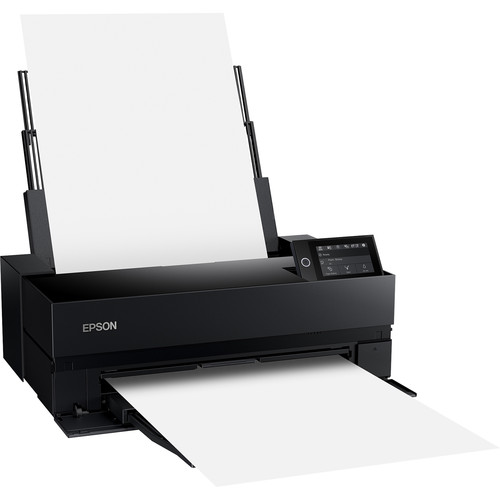
EPSON SureColor P900

While we all endure being locked up at home for the apocalypse, it seems hell has frozen over as Epson is FINALLY catching up with Canon to release two new SureColor printers that don’t require black ink switching!!!!

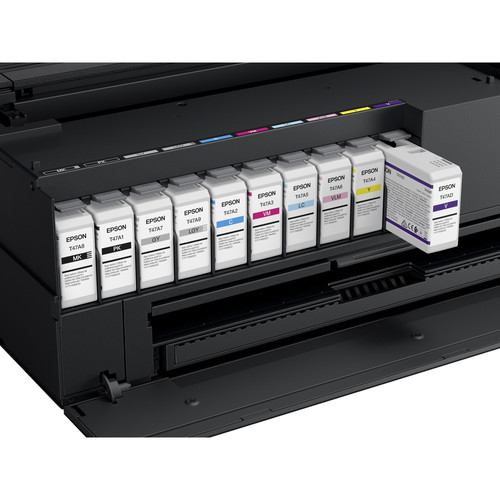
Yes, you read that right – the new SureColor P700 and P900 printers feature a new 10-channel MicroPiezo AMC printhead with dedicated channels for both Photo and Matte Black ink types so no ink switching necessary – hallelujah! This was something previously only the the 24-inch P7570 and 44-inch P9570 enjoyed, so I’m glad it has made its way down to these stalwarts.


Introducing the new Violet ink too

Both printers feature new UltraChrome PRO10 pigment ink with Violet to deliver an extremely wide color gamut, support Advanced Black and White Mode, and offer a new “Carbon Black” printing mode to dramatically increase Dmax for best-in-class black density on glossy papers. I can’t wait to try out this new Carbon Black feature!!!

For those familiar with how the P5000 offered Violet, this is better because it’s not an either or thing – you actually get both a dedicated line for matte black and violet so its the best of all worlds! I’ve heard great things about the violet ink, but I made the choice with my P5000 to go with the Standard Edition (Light Light Black) instead of the Commercial Edition (Violet) so this is wonderful news!

I’ve also noticed that LLK seems to be replaced with a renamed Gray so I suspect that is part of the formula that makes the new Carbon Black feature possible. The P900 cartridges shown above appear to be the same design and capacity, but this is a new ink set so I’d plan on having to sell your existing inks with your outgoing printer.


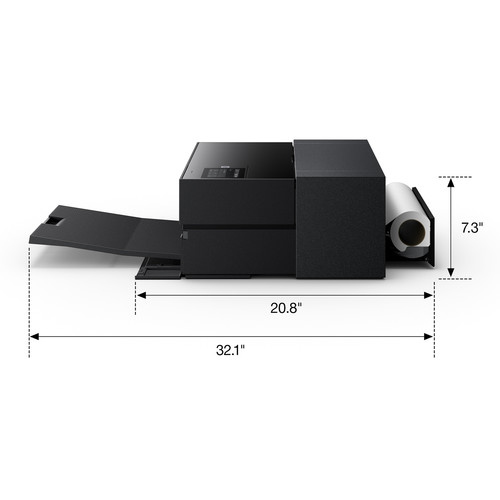
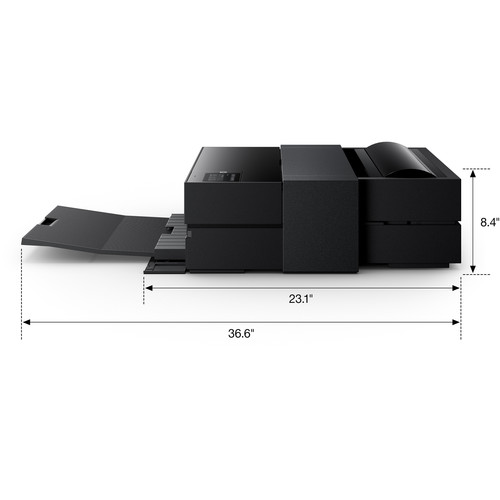
Compact P900 design — 30 percent smaller than the previous generation

P700 vs P900 (and their predecessors)


EPSON SureColor P700 with a new design for its built-in roll support

From that I know so far, the P700 has roll support in the same basic way that the P600 did but the P900 is just like P800 in that it requires a more substantial roll media adapter – however, I have no info yet if the P800 adapter will work on the P900 (let’s hope).

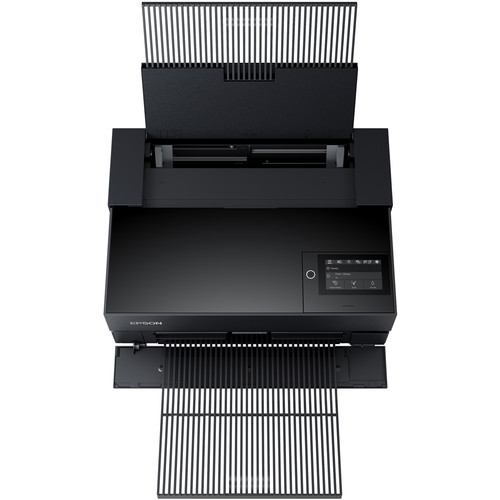
Both models appear to have a new waffle pattern for the paper trays which should result in both a weight savings and limit the surface area for dust build up (P700 shown)

Press Release

Epson Reinforces Commitment to Changing Needs of
Creative Professionals with New Photography Desktop Printers

13-inch SureColor P700 and 17-inch SureColor P900 Incorporate Breakthrough Advancements from Large Format Printers to Produce the Highest Quality Prints for the Desktop

LONG BEACH, Calif. – April 21, 2020 – Epson, an industry leader in the photography market, today announced a breakthrough in professional printing technology with the introduction of the 13-inch SureColor® P700 and 17-inch SureColor P900 desktop photo printers. Replacing the award-winning SureColor P600 and SureColor P800, these new printers draw from over 20 years of experience to incorporate the same large format printing technology used by the world’s leading photographers into a sleek, compact design, allowing for the creation of exhibition quality prints from the convenience of the desktop.

“Fifteen years ago, Epson stunned the industry with the Stylus Pro 3800 that provided unprecedented creative control for photographers, allowing them to print up to 17-inches wide without a darkroom,” said Reed Hecht, senior product manager, Professional Imaging, Epson America. “With the introduction of the SureColor P700 and SureColor P900, a new generation of photographers will experience another breakthrough in printing technology – truly redefining not only the photographic print but also the printing workflow.”

The new SureColor P700 and SureColor P900 are the smallest professional 13 and 17-inch printers in their class, with a 30 percent size reduction from Epson’s previous generation printers, and are designed for use in photography, graphic design, fine art, and illustration. The printers tout a new 10-channel MicroPiezo® AMCTM printhead to increase productivity, with dedicated channels for both Photo and Matte Black ink types – no ink switching necessary.

Featuring new UltraChrome® PRO10 pigment ink* with Violet, the SureColor P700 and

SureColor P900 deliver an extremely wide color gamut and support Advanced Black and White Mode to create unparalleled, professional black and white photographs.

According to Henry Wilhelm, director of research at Wilhelm Imaging Research, the world’s leading independent print permanence testing laboratory, Epson’s new printers and inks are currently undergoing comprehensive ten-factor testing with a range of papers and canvas, with both color prints and B&W prints made using Epson’s Advanced Black and White Mode. “Preliminary data for the Epson 10-color UltraChrome PRO10 pigment inks in the new SureColor P700 and SureColor P900 create stunning museum quality prints with WIR Display Permanence ratings that we believe will equal the ratings achieved by the current UltraChrome PRO12 inks of up to 200 years for color prints and up to 400 years for B&W prints.1 Prints framed with UV-absorbing acrylic – and those displayed under LED illumination – will achieve significantly higher ratings.”

For the first time, users can easily print directly from iOS® devices2 to the SureColor P700 and SureColor P900 in a color managed workflow. Using an updated mobile version of Epson Print Layout software, full support and color management tools are provided for iPhone and iPad printing. These printers also feature a new print driver mode – Carbon Black – which dramatically increases Dmax by up to 11 percent, for best-in-class black density and reduced bronzing and gloss differential on glossy papers.

The SureColor P700 can accommodate both roll and cut sheet media, and the SureColor P900 accommodates cut sheet media and an optional fully enclosed roll media adapter supports both 2-inch and 3-inch rolls and roll printing up to 10 feet long. Additional features include a 4.3-inch customizable touchscreen, upgraded wireless connectivity including 5GHz and an interior LED light to watch the progress of a print.

More About the SureColor P700 and SureColor P900 Desktop Photo Printers

Designed to help photographers reproduce every detail of their creative vision, the new SureColor P700 and SureColor P900 incorporate a range of features to produce exhibition quality prints from the convenience of a desktop:

  • Outstanding image quality and color — All-new UltraChrome PRO10 Ink with Violet produces a wide color gamut for vibrant and rich colors

  • No Photo and Matte Black ink switching — Dedicated channels for both black ink types – no switching needed

  • New 10-channel MicroPiezo AMC printhead — Consistently delivers prints with outstanding speed, consistency and accuracy; supports variable size droplet technology as small as 1.5-picoliters for remarkable output quality

  • Easy printing from smart devices — Print color-managed files directly from an iOS device2 with an easy-to-use interface

  • New Carbon Black Driver technology — All-new Carbon Black Driver mode dramatically increases Dmax for best-in-class black density on glossy papers

  • Professional media handling — Accommodates rolls3 and sheet media up to 1.5 mm thick of Epson Professional, Signature Worthy® and Legacy papers as well as third-party media

  • Easy to use — Features 4.3-inch customizable touchscreen, wireless connectivity and interior LED light

  • Compact design — 30 percent smaller than the previous generation

  • Industry-leading print permanence — UltraChrome PRO10 ink is expected to create prints that last up to 200 years for color and 400 years for black-and-white1

Pricing, Support and Availability

The SureColor P700 ($799 MSRP) and SureColor P900 ($1,295 MSRP) will be available through Epson Authorized Resellers starting in May. The printers offer a standard Epson Preferred Limited Warranty, a one-year program that includes toll-free advanced telephone access Monday through Friday and usually next business-day on-site service in the unlikely event of any hardware failure. For additional information, visit www.proimaging.epson.com.

About Epson

Epson is a global technology leader dedicated to becoming indispensable to society by connecting people, things and information with its original efficient, compact and precision technologies. The company is focused on driving innovations and exceeding customer expectations in inkjet, visual communications, wearables and robotics, and is underpinned by original microdevices. Epson is proud of its contributions to realizing a sustainable society and its ongoing efforts to realizing the United Nations’ Sustainable Development Goals.

Led by the Japan-based Seiko Epson Corporation, the worldwide Epson Group generates annual sales of more than U.S. $10 billion.

Epson America, Inc., based in Long Beach, Calif., is Epson’s regional headquarters for the U.S., Canada, and Latin America. To learn more about Epson, please visit: epson.com. You may also connect with Epson America on Facebook (facebook.com/Epson), Twitter (twitter.com/EpsonAmerica), YouTube (youtube.com/EpsonAmerica), and Instagram (instagram.com/EpsonAmerica).

# # #

* This product uses only genuine Epson-brand cartridges. Other brands of ink cartridges and ink supplies are not compatible and, even if described as compatible, may not function properly or at all.

1 Print Permanence in testing. Ink lightfastness rating based on accelerated testing of prints on specialty media, displayed indoors, under glass. Actual print stability will vary according to media, printed image, display conditions, light intensity, humidity and atmospheric conditions. Epson does not guarantee longevity of prints. For maximum print life, display all prints under glass or lamination or properly store them. Visit www.wilhelm- research.com for the latest information.

2 Most features require an Internet connection to the printer, as well as an Internet- and/or email-enabled device. For a list of Epson Connect enabled printers and compatible devices and apps, visit www.epson.com/connect

3 Roll media handling is standard on SureColor P700; optional on SureColor P900

EPSON, MicroPiezo, Signature Worthy, SureColor and UltraChrome are registered trademarks, EPSON Exceed Your Vision is a registered logomark Seiko Epson Corporation. AMC is a trademark of Epson America, Inc. Epson Preferred is a registered servicemark of Epson America, Inc. iPad and iPhone are trademarks of Apple Inc., registered in the U.S. and other countries. All other product and brand names are trademarks and/or registered trademarks of their respective companies. Epson disclaims any and all rights in these marks. Copyright 2020 Epson America, Inc.

Conclusion

I’m very excited about the addition of violet and the end of black ink switching. Hopefully I’ll get a chance to review one as my P800 and P5000 have been great additions to my studio. These improvements are definitely worth the upgrade. My P800 has been getting a workout in my office lately during the lockdown and P600 impressed me way more than I ever expected, so It will be fun to see how the new models perform.

Where to Buy?

CLICK HERE to learn more and get on the waiting list to buy once they become available in June 2020.

Other articles you may enjoy

If you enjoyed this article, you may also enjoy these:

Enjoy these and more on the Reviews tab as well as Ron's Recommendations.

Disclosure

If you make a purchase using links found in this article, I may make a commission. It doesn’t cost you a penny more, but it does help to support future articles like this.
Tuesday, December 4, 2018

Printing Series: Douglas Dubler – Fashion Photographer & Epson Stylus Pro Master Printer


Copyright © Douglas Dubler – ALL Rights Reserved

My printing series, which I hope everyone is enjoying, would never have existed had it not been for Douglas Dubler. I first met Douglas at the Nik Summit  in 2010 and was floored by his “Avatar Beauty” print (a 44” x 60” beauty shot shown at the end of this section) that had such amazing color and detail that I could stare at it all day long. I was immediately hooked and realized that now was the time to get into printing.

Before meeting Douglas, I had always advised people to outsource their printing to avoid the headaches I had endured in the past when trying to print my own photos. However, Douglas assured me that all my fears and concerns based on past horrible experiences were no longer valid. He explained that amazing prints were now possible by anyone – with the right tools if you just followed the proper procedures. In fact, he declared it was so easy that “a monkey could do it.” With that gauntlet thrown down, I set out to prove if Douglas was right, and I quickly discovered he was 100% correct! With the headaches of the past (mostly) gone, I decided it was time to share the joy of printing – the final and most important part of the art of photography - with all of my readers.

All that I’ve learned from this amazing master printer would take years to blog, so I set out on a journey that resulted in my Printing Series and book. I hope that you enjoy the tips here so that you can get the same passion for printing that Douglas, and I now share. I hope you enjoyed my printing series, so if you ever see Douglas, be sure to thank him for it!


Copyright © Douglas Dubler – ALL Rights Reserved

Custom Paper Profile Guru

It seems that every master printer, RIP software vendor, printing product maker, etc… in North America knows Douglas Dubler. To many he is the ultimate paper profile guru who shows what is possible when you fight your way for that last 10% of printing perfection. His prints are a testimony to the reward he gets from spending several days building a perfect paper profile.

Yes, Douglas Dubler is hard core when it comes to paper profiles – probably more than you’ll ever want to be. However, there’s much to learn from Douglas no matter what level of investment you decide to make in printing. There’s also one thing that he taught me that is 100% true – your final print is really only as good as the paper profile you use to print it. Don’t believe me? Check out my ColorMunki article where I show how a simple paper profile can make a radical difference on a sub $100 printer with crappy generic paper.

The good news for the rest of us is that Douglas is a highly respected member of the X-Rite Coloratti who has been actively involved in helping to make the paper profiling process more accurate and easier for everyone. Even if you have never heard of Douglas, if you print using paper profiles generated by an X-Rite product then you owe Douglas a debt of gratitude for what he’s done to help to improve the process and fantastic results we are capable of enjoying today.


Copyright © Douglas Dubler – ALL Rights Reserved

Printing so easy a monkey could do it!

This was the claim that Douglas made, but in retrospect it could be a bit of a play on words as this series kicked off with a review of the X-Rite ColorMunki (now replaced by the i1 Studio). The ColorMunki is the entry level way to get an even larger monkey off your back – prints with horrible color that don’t resemble what you see on your display! Sure there’s more advanced products which can be used to get that last 10% of perfection for the fine art print, but Douglas was adamant that anyone could get great results worthy of hanging in their home. His formula for great prints is quite simple:

  1. Start with a good image – Shoot a great image in RAW and process that raw data as a 16-bit ProPhoto RGB image in Photoshop or his current favorite, Capture One. Without a great image and lots of data to work with, then the rest of the workflow fails.
      
  2. Calibrate your display – without a calibrated display you are effectively playing printing equivalent of Russian Roulette. It is virtually impossible to edit your image in a way that can be viewed on other devices (i.e., printers and other people’s displays) with the same vision you had for the colors in your image when you processed it (i.e., in Aperture, Lightroom, Photoshop, etc…). For this you need hardware designed to calibrate your display, and Douglas recommends a  i1Photo Pro 2 or better because it includes a spectrophotometer (more on that later). However if you can’t afford that, then at least an i1Display Pro is necessary . Some operating system tools for visual software calibration exist, but are only as accurate as your eyes and for most of us that isn’t very accurate as this test proves. His recommended display calibration settings are 6100K, 2.2 Gamma and 120 brightness.
      
  3. Use a good paper profile – Here’s where things can start getting complicated, depending on how good you want your results to be. For any of us, just using the paper profiles provided by the OEM for our printer will give satisfactory results with a monitor that is calibrated. This is possible via soft proofing where you have your monitor calibrated and you use software like Adobe Photoshop to apply a printer paper profile to adjust your display image so that it is a close representation of how your image will appear after it is printed.
     
    You can improve upon this result by using a spectrophotometer like the i1 Studio to create your own paper profiles which I discuss in very old my ColorMunki review. I covered more advanced paper profiling in my i1Xtreme review (now replaced by the i1Photo Pro).
     
  4. Print using a great printer – As a serious entry level printer Douglas recommends Epson’s SureColor P800 or for the ultimate; his current high end choice, the 17” SureColor P5000 Epson printer w/UltraChrome HDX inkset.
       
  5. Print on only the best papers - The Epson Legacy papers (Legacy Baryta and Legacy Platine) are Douglas' favorite gloss papers. While all of the Epson Legacy papers are extremely good, he really loves Legacy Fibre because it has such a wide color gamut, improved longevity with the new UltraChrome HD (P800) and HDX (P5000, P9000) Epson ink sets. It creates amazing prints using matte black ink.

Of course this is just a basic workflow and Douglas is not a basic guy.


Copyright © Douglas Dubler – ALL Rights Reserved

Douglas Dubler’s Full Workflow

Douglas only shoots with the best equipment possible, which for him is the Sony A7R III  and Phase One IQ3 100MP medium format, Broncolor strobes using the Scoro S power packs.

He explains that he wants to start with the best image possible and add his artistic touch on top of that. He doesn’t want to waste time compensating for crappy equipment. Once he has that great 16-bit ProPhoto image ready, he does the following:

  1. Start with a good wide-color gamut display – Douglas uses a Eizo ColorEdge CG247X as his primary display and the NEC MultiSync PA241W-BK (which I use too – and  love it) as his secondary display. He recommends at least a i1Basic Pro 2 for calibrating your display . To calibrate your Eizo display, Douglas recommends Eizo Color Navigator and for the NEC he only recommends the SpectraView II Display Calibration Software.       
  2. Prepare your image for print – He strongly believes that your image should be resized to its final size and resolution using on1 Perfect Resize and he does a special two pass sharpen Nik Software’s Sharpener Pro to prepare his images for a final print.      
  3. Create great paper profiles using your own spectrophotometer - Douglas uses the X-Rite i1iSis XL Color Calibration System (B&H), but a X-Rite i1iO Automated Scan Table 2 or even the i1Photo Pro 2 can be used to create the best possible profiles for your paper. 
  4. Analyze your profile using ColorThink Pro (review) – Give this product your image & paper profile, and it graphs you can see where the image exceeds the ability of the paper to reproduce portions of your image (i.e., out of gamut areas). You can use this data to modify your image or try different paper profiles to see which paper will give you the most color gamut coverage. This can be very useful when selecting papers as some papers will be able to render more colors in your image than others.
  5. Use ColorBurst OverDrive – Douglas feels that the best way to get the most out of your Epson printer is to use great RIP software. For Douglas, that only means you have several choices including Mirage, ColorByte ImagePrint, or ColorBurst OverDrive. He feels using a RIP gives him the best image quality possible. It also gives him the features necessary to come back and get those same great results in the future (which may sound silly you now, but after reading my Printing 101 eBook – you’ll understand how complex it can sometimes be to get the same results on another day). Douglas claims to be able to do it years later and with his fastidious workflow, I believe him!
  6. Use the best ink and papers – He strongly recommends that you stay away from third party ink and refills as you are defeating one of the major benefits that the Epson printer platform offers – fantastic archival ink! He also highly recommends that you at least try the new Epson Legacy papers.  See my printing series for more reviews of great papers too.      
  7. Print big on the best printer – For Douglas, the Epson SureColor P9000 is the best printer on the market - period. Nothing makes a statement like a large print, and I can testify that it is quite magical seeing the results from these amazing machines. You may enjoy this video of Douglas discussing how he gets the most out of his large format Epson printers.   
  8. Inspect your prints in good light – Douglas uses a GTI VPI 52 print inspection station, and recommended the product I use – the GTI PDV-2020EX Desktop Viewer - 23.5 x 25.3" with Lower Luminaire and Side Walls. The ability to critically examine your image in consistent and color balanced light helps you to judge what corrections might be necessary to your image to get the best possible result, GTI’s solutions offer that advantage. Randy Hufford, Greg Gorman, and others featured in this series are a big fan of these light boxes and after using one you can never be satisfied with any other light source for image editing.
  9. Become a Master Printer – If reading this brief synopsis really inspires you to master fine art digital print making, then Douglas offers one-on-one remote viewed sessions in a ten-hour complete course on all aspects of color management from concept to output. Contact me for details if you are interested.


Copyright © Douglas Dubler – ALL Rights Reserved

Conclusion

I’d like to thank Douglas Dubler for the countless hours he took out of his busy schedule to educate me and answer my every question. Douglas is super funny and honest guy who really cares both about creating amazing prints and sharing his knowledge with those who follow in his footsteps. It has been an honor to work with him as my dream is to one day be able to create the amazing fashion photos he has on his portfolio at http://www.DouglasDubler3.com.


Copyright © Douglas Dubler – ALL Rights Reserved

More Douglas Dubler Articles

Since I originally wrote this article, Douglas has been kind enough to share more content with me. Here's  few more articles featuring Douglas that I think you will enjoy:

Disclosure

If you make purchases using the links provided, I may get a commission. I appreciate your supporting this blog by using the links provided!

Tuesday, October 9, 2018

REVIEW: Epson SureColor P5000

Epson SureColor P5000Epson SureColor P5000 Standard Edition 17" Wide-Format Inkjet Printer

It's been two years since I first saw the P5000 in New York and since January 2017 when I write my first thoughts on this printer, but Epson USA and I finally got in sync to get one into my studio. I have had a chance put it through its paces with some of the best Epson Professional Imaging Media and I must say that I've been quite happy with it.

For long-time readers of my blog, you may recall, I reviewed the Stylus Pro 4900 in early 2011. I owned it for many years and made many great prints from it until it eventually died from a clogged print head. While time will only tell if this printer meets the same fate, it is claimed that improvements in the inks and a startup routine that clears the nozzles should hopefully reduce the likelihood of that happening again. If it does happen, I'll be sure to report it, but in the meantime I'm sure glad to have this work horse printer back in my studio again. Read on to learn why.

New UltraChrome HDX ink set

I found the UK UltraChrome HDX Ink Set Page to be a little more enjoyable to read than the official press release to learn about what's new ink that comes with this printer. Specifically, it illustrates how the new Photo Black ink has a pigment concentration that is 1.5 times higher, and the new Matte Black of the UltraChrome HDX ink technology has a raised pigment density.Bronzing has also been reduced in Cyan and Magenta.

Using the light light black (LLK) option means users can achieve 98% of Pantone. While choosing violet ink means the gamut increases to 99%, that's mostly important for graphics designers doing content that must match Pantone colors. For photography, you'll still want to stick with the LLK option for the best results with black and white photos as well as shadow details in color photographs.

For those with a Epson P800 that uses Epson UltraChrome® HD ink, the main difference is that the orange, green and yellows are slightly better. I don't think the average user will see the difference, but now that I have both I'd be inclined to use the P5000 over the P800 for prints that I deliver to my most demanding clients. 

Features & Setup

If you read my 4900 review, you pretty much can apply almost everything in it to this review. Nothing has really changed feature-wise other than a different color case and a new and improved ink set.

Sadly my areas of improvements back then remain and I've added a few more at the end of this article.

After downloading the software, setup was easy via USB or Network cable, but sadly wireless support still hasn't arrived.

You can still load the tray up with your favorite papers up to 17x22 as well as a roll of 17" wide paper, and print from either automatically.

And yes, sadly you must still wait for switching between photo black and matte inks so plan you print jobs carefully.

Photoshop CC 2018 (19.1.6)

Printing in Photoshop CC 2018 with the Epson SC-P5000

Printing from Photoshop is a challenge with all of the settings you need to make sure you set properly. Specifically, you must make sure that you set Color Handling in Photoshop's Print Settings to Photoshop Manages Colors (shown above) and your click Print Settings... to set the Media Settings Mode to Custom | Off (No Color Adjustment). If you fail to do this you'll get double color management which means your colors will be very off from what you see on the screen.

You also need to ensure that the Media Type in the driver matches the paper you are using as should the Printer Profile in Photoshop, and this can be rather tricky to figure out for the novice.

Printing in Windows with the Epson SC-P5000
This example shows printing to 13x19" Epson Premium Luster Photo (260) roll paper (not to be confused with Ultra Premium Photo Paper Luster). You must also click the Roll Paper Option... button to turn on Auto Cut each time you switch the paper source which is rather frustrating. Finally, for best results you'll want to set print quality to Max Quality.

Advanced Black & White

Epson is famous for great Black & White prints, so I've written a lot about its Advanced Black & White mode (aka ABW). If you aren't familiar with how to use it, the key thing to do is set the color media setting item to Advanced B&W Photo then click the Advanced Button for the custom mode color color controls as shown here:

2018-09-30_21-57-11

After clicking the Advanced button from Color Controls you can dial in the Color Toning (which I usually start with Neutral or Greg Gorman's Favorite - Warm)  then set Tone to Dark. I wrote about this topic in my Printing Series and interviews with Greg Gorman and Vincent Versace, so you can learn more about this dialog in those articles. Here's a quick look at my settings though:

2018-09-30_21-56-41

The important part to remember in Photoshop is to say "Printer Manages Colors" for Color Handling:

2018-09-30_21-57-27

Sounds too complicated? Well that's where the Epson Print Layout app below comes in - and it works exactly the same way on both Windows and Mac. With that said, my ABW article does explain how to use this feature on a Mac if you are interested.

Epson Print Layout 1.3.5

Printing Color in Windows Epson Print Layout with the Epson SC-P5000

Fortunately Epson makes printing much easier these days with Epson Print Layout whereby you simply choose the desired values in the Printer Settings section, make your desired adjustments (if any) in Layout settings and typically you can accept the defaults in Color Settings. Choose your copies and hit print, and everything just works. While you don't get the advantage of soft proofing and gamut warnings like you get in Photoshop, for most users this is the safe and easy way to get accurate color managed prints so I recommend using this software (on Mac and PC) unless you have a strong reason not to.

Sadly, despite choosing the Center "Centering" option, the image still printed on the left side of the page when using roll paper. What's more, there's no "Save Roll Paper" option like you see in the driver so more paper was wasted on the top and bottom.

See this article to learn how to workaround this issue which also occurred on the 4900, but sadly the workaround only applies to sheet paper.

Advanced Black & White Mode

Printing Advanced Black & White on Windows Epson Print Layout with the Epson SC-P5000

I think this is one of the big advantages of Epson Print Layout because Advanced Black & White mode is a little tricky to use, but this app makes it as simple as selecting "Advanced B&W Photo" from Type in the Color Settings section. From there just choose your desired color toning and tone and you are done - so easy!

Getting the Best Results

Yes, Epson ink is expensive but the ink its the secret sauce that makes the prints look so fantastic. It's also a required element for the ICC profiles that are fine tuned to get the best results out of your ink and paper combo. As a result, your best print results will always come from the use of genuine Epson inks made by Epson ONLY for the P5000 and ICC profiles generated on a P5000 (NOT a 4900) for the paper you wish to use. A failure to do this will result in poor quality prints, so my blanket advice is - don't print unless you are using the correct profile and genuine Epson ink!

Since getting the best ICC profiles from third parties can be difficult, the easiest and fastest way to get the highest quality prints is to use use genuine Epson paper. Your printer comes with perfect ICC profiles made specifically for Epson's papers found at https://epson.com/professional-imaging-media.

Click here to find deals on Epson papers at B&H or click here to find deals on Amazon.

I'm a big fan of sample packs to get a feel for what paper works best for me, so here are links to sample packs of my favorite Epson papers:

Also see the end of this article or my printing series for instructions and videos on how to use these papers for your Mac or PC.

Areas of Improvement for the Future

While the ink set has been improved, and the new black case looks great, there doesn't seem to be much else that has improved over its predecessor in 7 years since the release of the 4900. Specifically, I am disappointed the following wish list features didn't get added to the P5000:

  1. Support for wireless printing - including IPP printing (e.g., Mopria, AirPrint, etc...)
  2. 4x6 photo support - this pretty much forces you to get a P800 if you plan on giving 4x6 keep sake photos to friends or clients
  3. Dedicated lines for Photo Black & Matte Black Ink - Switching is a hassle and wastes a ton of ink. Canon has overcome this problem ages ago, so surely in 7 years Epson could have solved this problem. The lack of this feature is actually quite offensive.
  4. Still no "Center to Printable Area" feature for Roll Prints - really?!!! Again, this could have been a simple driver improvement or even a feature in Epson Print Layout, but no.
  5. Performance - Is it any faster? According to my contacts at Epson America, they say "No, it performs about like the 4900. 8" x 10" prints from 0:59 to 2:26  (normal is 1:28) and 11" x 14" prints from 1:42 to 4:04 (normal is 2:31)"
  6. No Driver Improvements - No meaningful driver changes from the 4900 means its far behind in terms of features and user friendliness when compared to the Canon PRO-1000 & PRO-2000 that I also use in my studio.

Click here to see my Q&A with Epson America when this printer was being launched for more details about what's changed.

Conclusion

It's been a while since I used my 4900 and sadly it died due to a clogged print head, so I was reluctant to decide if I should even bother reviewing this printer. Now that I have it, I forgot how fast and enjoyable this printer is to use. In fact, I looked back and saw how a majority of my printing was done on 4900 when it was in service. Since P5000 arrived I've found myself wanting to use it for its blazing speed and flexibility of doing roll and sheet paper without the hassle of any manual switching.

With that said, Canon's lack of roll support for 17" means this is really the only game in town for high quality 17" roll printing. While the P800 can do roll printing in a pinch, it's lack of a built-in cutter makes it less practical for those who enjoy doing banner printing.

In the end, I consider this a great printer for those doing large workloads on a weekly basis - not the occasional print. Professional event, wedding, school portrait, etc... photographers who do high volume printing on a weekly basis are going to appreciate its blazing speed and large capacity tray - even if you never print on roll paper. If this is you, then I highly recommend this printer.

Users making the occasional print are much better served with the P800 for its ease of use for everyday printing, and a head that is less likely to clog. If you are serious about roll printing then you'll want to move up to the 24" or larger model as 17" is pretty small in the world of "large format" printing - ESPECIALLY when doing canvas wraps.

Where to Buy?

CLICK HERE to learn more or buy today from B&H and consider one of these covers while you are at it to keep the dust away.

Other articles you may enjoy

If you enjoyed this article, you may also enjoy these:

For casual users, I also recommend you consider these reviews:

Enjoy these and more on the Reviews tab as well as Ron's Recommendations.

Disclosure

If you make a purchase using links found in this article, I may make a commission. It doesn’t cost you a penny more, but it does help to support future articles like this.
Tuesday, September 18, 2018

REVIEW: Epson PictureMate PM-400 - A Great Whole Family Photo Printer


Epson PictureMate 400

Despite my history of printing my own images and even writing a book on the subject as part of my Printing Series, my beautiful wife has no desire to geek out on printing like me. As a result, she's been frustrated with the bottleneck (me) in getting prints made from her iPhone pics or from the photos I share with her from my DSLR and mirrorless cameras. To address this frustration, I decided to test the wildly popular Epson PictureMate PM-400 wireless compact color photo printer to see if it would meet her needs.

Setup

The nice thing about this printer is you don't need a computer, so you just turn it on - plug in the 4 color ink cartridge and you are in business. You can then quickly print to Epson 4x6 or 5x7 photo paper directly from your cell phone or SD card.

The wireless networking setup was easy and my Windows 10 PC had no problems discovering the printer. I also connected it via USB and saw no noticeable performance difference so I decided to take advantage of wireless printing so I could put the printer anywhere in the house where we were sitting when we wanted to crank out some pics while talking or watching TV.

AirPrint vs Windows

AirPrint is known for being easy and reliable, but it's also known for being very simplistic. With this in mind, I decided to print some photos off of my iPhone X and everything went pretty smooth. For large photos not taken on the phone it did seem to take nearly an extra 30 seconds to print a photo via AirPrint vs Windows, but if you aren't hovering over it like someone trying to watch water boil, the difference was tolerable.

Test Images & Performance

For comparison, I also pitted the inexpensive PM-400 against the excellent Epson SureColor P800 which costs nearly $1000 more just to see how wide the quality and performance gap was between the two - and the results surprised me!

Into the Light by Ron Martinsen on 500px.com

For my first image, I thought I'd start with an excellent photo with a wide range of tones to see what was the best this printer could do. The PM-400, which had been turned off for a couple weeks took  2 minutes 17 seconds for first print with 46.5 seconds for head prep before paper feed from cold start. This means roughly a minute and 30 seconds for this image to print for a roughly 36mb print job which was NOT specially prepared for this printer - I just threw an original JPEG at it.


PM-400 From Photoshop with Printer Manages Colors & Default Settings

The quality was average viewer good, but obviously with 4 colors you aren't going to get a match to the original. It actually looks quite a bit better in real life than the scan of the print here, so don't let the quality here scare you - in real life it seems "good enough" for most users and I think better than what you get from discount photo printing labs like Costco, Walgreens, Target, etc...

For my photography geek friends, here's the Photoshop and printer driver settings I used:

Epson PM-400 Photoshop Print Settings

Epson PM-400 Windows Print Driver Settings

Surprisingly the P800 took 2 minutes and 3 seconds with 11 seconds before the paper feed on a cold start. This means it took one minute and 52 seconds, but the tonal range was significantly better in the highlight areas on the cheeks.


Epson SureColor P800 from Photoshop with Printer Manages Color using the sRGB preset

Despite being printed on the same Epson 4 Stars Premium Glossy paper and not using any ICC profiles or complex print features, the P800 was pretty darn close the original photo. Had I used an ICC profile I could have got an identical match.

Again, for my printing geek friends here's the settings I used to get this print:

image

Epson Windows P800 V3 Driver Settings

Black & White Test

To the novice who has never done fine art printing, one would think that Black & White printing would be very easy and there's no difference between the two. However, the reality is that B&W printing is actually rather complicated and hard to get right simply because printers aren't using just black ink to print out a "black and white" image (which is really a grayscale image).

Here's the source image I used:

Sigma85ArtModel-531-Edit

When the PM-400 was warm it only took 10 seconds before the paper had been pulled into position and it started printing resulting in a total print time of 1 minute 37 seconds for a 57.4 mb job over a wireless network connection.  The P800 ABW did it in 2 minutes 2 seconds with 11 seconds which was the real kicker that I'd see consistently in my testing - the PM-400 was actually faster at cranking out a 4x6 photo!


Epson PM-400 Grayscale

No, your eyes aren't deceiving you - the black and white images often taken on a blue/purple tone depending on the ambient light that you view them under. It doesn't look quite as extreme as what you get from a scan in real life, but it's off - way off - from reality. Again, my wife thought it was fine but this one that was tough for me to accept.

I used the same Photoshop settings as above but here's the settings I used for the driver:

Epson PM-400 Windows Print Driver Settings

This time there was no contest in terms of tonal fidelity - the extra $1000 made a huge difference as you'd expect from a high end photo printer:


Epson P800 using Epson's Advanced Black & White (ABW) Mode

Epson P800 Windows V3 Driver using Advanced B&W Photo mode

For more information about Epson Advanced B&W Photo mode see my ABW article.

Casual Print Test

Here's a 100% unedited photo I took with my iPhone X:

IMG_3543

I printed directly from from my phone using AirPrint to the PM-400 and in 1 minute 30 seconds I had a nice borderless print.

Using my P800 via AirPrint on my phone was 1 minute 56 seconds which was surprising.

Windows Print Pictures Wizard

On Windows with Photoshop even when I told the driver to do borderless with max expansion, the aspect ratio of the photo caused me to get white bars on both the left and right side. To fix this problem I simply tried right-clicking on the photo in Explorer and choosing Print to use the Windows Print Pictures Wizard which resulted me in getting the same borderless results as AirPrint.  This is primarily due to the aspect ratio of iPhone prints vs digital camera prints which means that a true borderless print is going to crop more off the top and bottom of the print than one with white bars on the side. Keep this in mind when choosing borderless!

Quality-wise I saw the same differences in skin tones especially in the hot spots of the photos and in the cheeks as I saw with the model shot above, but it was less noticeable in a natural light photo.

Conclusion

In the end my wife loved the PM-400 so it was EXACTLY what she wanted and it works for her. I appreciated it for its ease of use and speed when the kids need a quick print of a photo that's on my iPhone for a school project where quality doesn't matter. It was also great for sending pics to the grandparents who don't really give a hoot about the quality as long as the pics are of their precious grandchildren!

For me, I obviously won't be giving up my P800 for the photos I care about. With that said, you don't need to spend a fortune as my P600 is almost as good for substantially less than the P800.

For the price, I loved the speed and ease of use I got out of the PM-400 so I can easily give it a strong recommendation for everyday non-color critical use. It's fast and certainly worth the great reviews it gets on Amazon for printer that cost less than a set of ink for my P800!

Where to Buy?

CLICK HERE to learn more or buy a Epson PictureMate PM-400 today.

Other articles you may enjoy

If you enjoyed this article, you may also enjoy my printing series. Also be sure to check out my Reviews tab as well as Ron's Recommendations.

Disclosure

If you make a purchase using links found in this article, I may make a commission. It doesn’t cost you a penny more, but it does help to support future articles like this.