
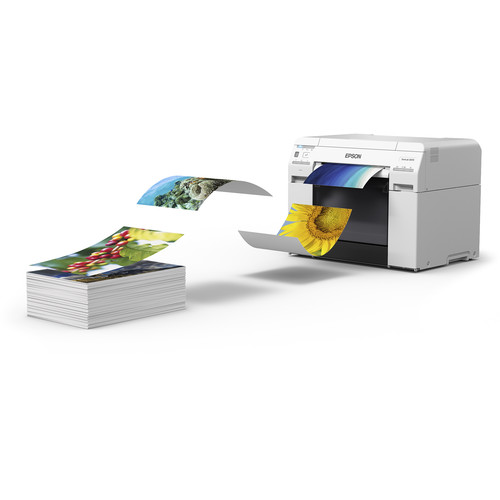
Want to print a large number of photos blazingly fast at a price that doesn’t break the bank, yet has a professional look and feel? I did, so I wrote this review to see if the EPSON SureLab D870 lived up to its promises and my very high standards as a professional print master, print book author and Senior Program Manager of the Microsoft Windows print team for 3 years.
If you are here just for the review of this printer designed for professional photographers then you can skip the next section. If you are a photography hobbyist or someone with a lot of photos that you wish you had time to print, then you may enjoy the background story below about why I am writing this article.
Background Story
According to my photo library management software, Mylio, I have roughly 450,000 photos saved on my NAS and for my phones I have 100,000+ in Google Photos plus 22,000 in iCloud. Now out of those roughly 572k photos I’ve made about 30k public and shown my family about another 10k or so on top of that. Let’s assume I’m being too conservative though and say that the total number of photos seen by eyes other than mine is really 72,000 photos. That means I have a half million photos that have never been seen by others, and that’s from someone who is internationally known for photography AND printing!!!!
Now I will admit that because I shoot in burst mode, there’s probably plenty of photos that my eyes have only glanced at once or twice. However, this past March I had a lot of time to think as I drove from Seattle to Texas (and back) to bury my Dad. While I was at his place in a rural Texas town I found myself enjoying old family prints from the time before digital photography. It kinda hit me like a ton of bricks that I wasn’t judging these photos for their composition, sharpness, color, etc… – I was just enjoying the walk down memory lane.This reminded me of a common complaint from my wife who tells me “you have all those photos, but they are useless because I can’t even see any of them”.
Now we do enjoy plenty of photos on our Meural digital frames as well as the fantastic photo frame experience of the Google Nest Hub Max, so if you aren’t doing that I still highly recommend that. My wife enjoys printing her cell phone photos with her Epson PictureMate, and I’m a heavy user of my EPSON P800 and P5000 printers for my fine art photography work. However, there’s a decade of digital photos that live on my redundant NAS storage devices that really need to be combed through so I can print those memories to be enjoyed the good old fashioned way – by holding them in a hand – long after me and my NAS devices, digital frames and phones are long gone. More importantly, they need to be enjoyed by my kids and future grandkids (hopefully) as I have enjoyed the print photos my parents and generations before them took.
As I was driving through beautiful places like Moab, Utah during my long drive I got to thinking about how sad it would be if my family couldn’t enjoy the experience of seeing my photos because they got lost due to some digital tragedy after I was gone. Sure I have lots of digital backups, but what if those after me just simply stopped tracking all of that data and ultimately it was lost? What would be left? Just the prints – and most likely just the ones in good old fashion photo albums or printed photo books.
Now my success with this blog has given me a benefit many of you don’t have, so my cost at trying photo print services, printing photo books, archiving photos digitally, making professional prints, etc… is usually $0.00. With the cost excuse out of the way, I still have my wife complaining that she doesn’t know happened for most of the years we were dating and the first 10 years of my sons life outside of what you see on the blog (which is also what’s on our digital frames). Why is that? I have no excuses, right?
Well, it turns out that I still work 60+ hour weeks despite the fact that I’m not blogging like I used to. I’m also the father of 4 children which includes active 11 and 4 year old kids who need to spend time with Dad when he stops his workaholic days, so my free time usually begins around 10:00 PM at night (which was the start of my blogging work day years ago). Weekends end up being family time as well, so I’m lucky to get 20 minutes here, 30 minutes there to do activities that I enjoy – like editing or printing personal photos. With these constraints, I find myself getting deeper in the hole each month as I still shoot photos regularly, but I fail to find to edit or print photos that aren’t for my clients or blog. Simply put, my cherished personal photos don’t get prioritized – sound familiar?
Sure, I occasionally tell myself I’m going to do it and then I find myself falling into the second trap – I end up going through a few dozen photos and then spending all my personal time editing one or two of these photos. At this pace it would take me a few centuries to accomplish my goal of leaving prints that memorialize my wonderful life for generations that come after me.
When I had this discussion with my wife she challenged me – why don’t you just identify the best family photos and JUST PRINT THEM. She insisted – don’t waste your time editing them because its better to leave the memories behind than it is to have them lost because you couldn’t let the professional photographer inside you forgive yourself for not making professional images. She even went so far to remind me about my strict policy of publishing photos on the blog for camera and lens reviews that are 100% unedited (all are in-camera JPEG), so why couldn’t I do the same for my digital memories and “just print the damn things”.
Again, is any of this ringing a bell with you?
Well, its my own love of photo editing and desire to have my important pictures that have been a mental block keeping me from doing what I needed to do, so I made a pact with her and myself that I’d finally address this problem. My objective – to print my collection – but obviously not all 500k+ photos – just the memories through the years.
I started with my 2007 photos collection – the year I got serious about digital photography (after years of “thankfully” being a film photographer with prints – albeit very bad ones). After 3 months of pouring through – just that one years worth of photos – I identified about 460 images that seemed to be worth printing. I took 22,271 photos that year, so roughly 2% were what I’d consider “family classics” that I’d want to hand down to generations after me. They also represent just over an hour of printing by the amazing SureLab D870.
Wow – after the long battle of pouring through all of these photos – and admittedly probably spending too long in Lightroom doing minor tweaks on some of them – it took me 3 months to pinpoint the photos and a little over an hour to have a big stack of 4x6 prints to put in a photo album or at least a shoebox (guess what I actually did :). I didn’t have to then upload them to some service and fight with its UI, I didn’t have to deal with a ROES system for a service built for volume printing, I didn’t have to fight the crappy tools to build photo albums that never preserve my desired aspect ratios so I end up spending weeks to build a simply 20 page “book”.
No, this was much easier – I just dumped all of the files out as Full Size JPEG’s, went to the folder in Windows Explorer, selected all of the photos then did a right-click and Print (which launches the native Windows Photo Print Wizard).
REVIEW: Epson SureLab D870
EPSON describes this printer as “The fast minilab printer for demanding small-format photo production”, and I’d say that actually hits the nail on the head. This six ink dye-based ink printer is optimized to print 4" x 6" prints in as fast as 8.3 seconds (using 720 x 360 dpi) and up to 430 4" x 6" prints, 275 5" x 7" prints, or 140 8" x 10" prints per hour – that’s screaming fast!!!
This means if you are a school, event or wedding portrait photographer you can print the bulk of your photos on this printer very quickly even if you have a huge amount of photos to print. What’s more, the Epson SureLab Luster Photo Inkjet roll paper and Epson UltraChrome D6r-S Light Ink Cartridges are extremely affordable, so you will not only save time but your cost per print will be peanuts compared to SureColor professional printers – yet they will have that same high-quality professional feel same in the hand to your clients. While its true you will sacrifice the archival and tonal range characteristics of the UltraChrome® inks, it does allow you to have more competitive pricing for the time and money you’ll save with this solution. You can also still use your professional pigment ink printers for the larger prints sold at a premium price.
Simply put, if you print a lot of prints for your business – this is a no-brainer purchase that will quickly yield a return on your investment as you enjoyed with your 70-200 f/2.8 lens! However, I’m not and many of my readers aren’t either.
I decided to review this printer with a slightly different intention – does this printer make sense for the hobbyist to print their collection and can it produce results that are better than the typical low budget print services (e.g., Costco, Walgreens, Shutterfly, etc…).
How I Printed 495 Photo Print Jobs

I identified the photos I wanted to print in Lightroom and then exported out all of my pics as full-size sRGB JPEG files to the same folder. I would then select all, right click and choose print. This launches the Print Pictures wizard whereby I set the settings as shown above and then then clicked options to modify the printer driver as follows:

Don't forget to change the Color Management setting to ICM for best results!!!!
This gave perfect borderless prints, but the prints were dark. This was easily corrected by changing the Color Management to ICM with no other changes necessary in the Advanced… settings.
Like all borderless printing, if your aspect ratio of your images don’t match the output you are going to lose quite a bit of picture detail. As a result, you may choose to NOT do borderless to avoid that. If you go down that route some 4x6 prints taken from 3:2 aspect ratio source images may have a small white line on one edge of the photo but its not bothersome to me.
Sorry Mac users, I only tested on Windows 10 1909 over USB, so I have no comments about using this printer from a Mac.
I did successfully print to this printer from Lightroom and Photoshop, but this method was by far the fastest and recommended to me by my friends at EPSON. After much experimentation, I agreed and stuck to this method throughout my time with this printer.
Oh and if you are wondering why I had 495 photos – well that was just the limit I gave myself for each year worth of photos.
Actual Observed Performance

When printing 4x6 borderless prints I observed it took an average of 7.2 seconds per print which excludes the nearly 2 minutes it took for the Windows Print Wizard to create the print job and then another 4 minutes it took Windows to spool the 6GB print jobs (495 photos) I would throw at it. I excluded that as my Windows system is getting a little old so a faster performing system might be much quicker.
Conclusion
Pouring through tons of photos to identify the ones you want to print is really the big time sync. I completely underestimated how long this task would take – especially given my crazy busy work schedule. I could have been less picky when pouring through 20,000+ photos per year, but 500 pics creates a pile of photos over 6 inches tall that then need to be dealt with later (e.g., put in a photo album, or even organized in a shoebox). Sadly when printing this any when the photos pile up they don’t end up in a meaningful order, they just get mixed all together out of order. This means I ended up with a huge pile of photos that needed to be sorted once again by hand.
I definitely think the quality of the luster prints I got was very good but obviously not as good as I can get from my SureColor printers with a complete color managed workflow in Lightroom/Photoshop or with Epson Print Layout.
For a consumer who can afford a large format printer or $2000+ lens, I think this is definitely a great investment to print your own 4x6, 5x7, 8x10 or letter size prints at home – especially now during COVID-19. I’d much prefer to do my own than send them off to a service – especially with the hassle of having to upload all of the photos and configure the settings for the photos (or god forbid dealing with horrible ROES systems).
Obviously if you are the budget conscious type or one who thinks Costco / Walgreens / Shutterfly prints are just fine, then go for it. I’m not that type as I’m pretty picky and I don’t like a big pile of prints that don’t look even close to color accurate to me.
If you are a wedding, event, portrait photographer, etc.. – this is a no brainer investment. Yes, you’ll still want a SureColor printer for your large prints and the Bride’s wedding album, but for everything else these prints are going to look very professional and make your clients happy.
The only knocks I really have against this printer is that the lack of pigment means these prints aren’t going to last as long, which I care about for archival purposes. That said, I think they’ll look significant better in 40 years than the prints my parents took of me and had developed at the drug store, so really its more of an academic discussion than anything else. If a photo was so important that it needed a 200+ year archival lifespan then I’d print it on the SureColor anyway – and it won’t be hundreds of prints!
So, if you can afford it – get it. Its a big upfront investment that will pay off quickly thanks to super inexpensive ink and paper. The performance will give you back valuable time and you'll avoid being the most hated family member for sucking all your household bandwidth uploading photos to print services.
Where to Buy?
CLICK HERE to learn more or buy today.
Other articles you may enjoy
If you enjoyed this article, you may also enjoy these:
- Printing Series
- Epson Legacy Papers Reviews & Tutorials
- Epson SureColor P800 Review
- Epson SureColor P5000 Preview
- Epson Perfection V850 Pro Scanner
Enjoy these and more on the Reviews tab as well as Ron's Recommendations.
Sales Tax Reimbursement with Payboo
Don’t forget, with the B&H Payboo card most buyers can get the sales tax reimbursed. Click here to learn more.
Disclosure
If you make a purchase using links found in this article, I may make a commission. It doesn’t cost you a penny more, but it does help to support future articles like this.


