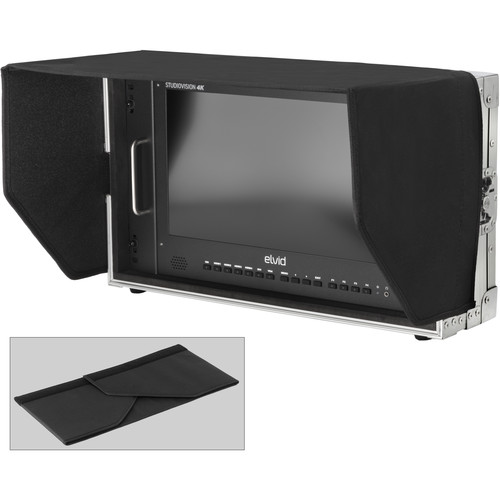
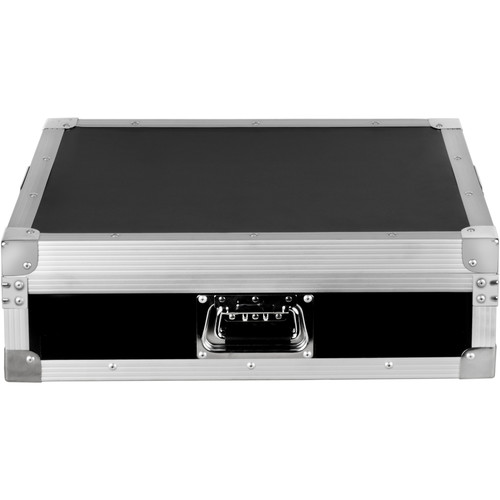
Laptops are great and practical for field shooting activities including tethering, but advanced shooting scenarios – especially in cinematography – result in multiple source devices in need of larger screen high resolution projection. What’s more, traveling with gear means that something like an extra display is going to take a beating so protecting an extra display can be a challenge.
The Elvid StudioVision displays solve these problems by offering a 4K display in a near indestructible case that offers a wide variety of easily switchable inputs including HDMI 2.0, BNC (3G-SDI), and even VGA. What’s more, it has a speaker and headphones port so you can listen to the audio as well – all very a very affordable price.
Yeah, but is it any good?
Long-time followers of my blog know that I care a lot about image quality so I’ve written many articles on high-end displays, spectrophotometers, colorimeters, and color calibration in my role as a X-Rite Coloratti and NEC Display Color Visionary. As a result, I was a bit skeptical when B&H (on behalf of Elvid) reached out to me to see if I’d be interested in reviewing this display.
My initial impressions was that the case was very well built and the soft touch discrete input buttons were a welcome feature. However, my first impression was disappointment when I discovered that the display had no modern inputs like DisplayPort and USB-C. This meant that I had to interface it with things like my AppleTV 4k and my Intel NUC to put it through its paces, instead of my MacBook Pro and Surface Pro.
While frustrating, the support for HDMI 2.0 (on port 1 only) meant that I could easily use adapters to get full 4k UHD performance out of this display. As a result, I started with some 4k YouTube videos and compared the results to my NEC PA332UHD-2 such as the one shown here:
Obviously the screenshot doesn’t tell you anything about the display performance beyond the fact that YouTube did report that I was getting UHD at 60fps, but my system reported that the display could only do SDR – not HDR video.
Color Accuracy
Out of the box I observed the colors to be a little oversaturated and on the warm side which is common for displays as that makes unedited photos and videos look more interesting. However, it’s a curse if your intention is to edit colors and get a accurate screen representation of what you are editing. As a result, I got out my X-Rite i1Studio Spectrophotometer and calibrated the display. With the colors displays more accurately, I found myself satisfied with the image quality but disappointed in the high gloss display finish which caused massive reflections even when using a hood as shown in the two photos below:
Notice how both have lots of reflections despite the included built-in hood and viewing angles. A matte finish for the display surface would have been a much better choice so this is something to consider if you will be using this display outdoors in strong daylight conditions.
As a result, I’d say this display is good for reviewing image and video content, but not suitable for photo or video color critical work in the field. Realistically, It is unlikely anyone would use it for that purpose anyway, but I wanted to make sure this was well understood who trust my opinions on color critical workflows.
For less than $900 USD (at the time of this writing) for Elvid StudioVision 4k Displays - up to 28" means they are a value that’s hard to beat for durability that is built to survive abuse in transport to your set.
Conclusion
I was extremely disappointed in the lack of support for DisplayPort and USB-C and the high gloss finish severely limits its usefulness in the field, but I think videographers looking for a larger display – especially when working with many multiple video sources in the field will really love this display. It’s super durable and can even run on battery power (not included), so it certainly beats the back of screen LCD or cheaper external displays most video productions use in the field.
Photographers looking for another display for field tethered shooting will find it invaluable as well – just don’t forget to bring the right display adapters and cables.
Lastly, at less than
Where to Buy?
CLICK HERE to review the technical specs or buy today at B&H.
Other articles you may enjoy
If you enjoyed this article, you may also enjoy these:
If you make a purchase using links found in this article, I may make a commission. It doesn’t cost you a penny more, but it does help to support future articles like this. I should also point out that I was allowed to keep this display after the review versus my typical requirement to return products.
I rarely do unboxing videos, but for this product I created the article entitled First Look - Meural Digital Canvas Photo Frame 2.0where I did just that. The reason for this is that I wanted to have a little more bake time with this newest version of the wildly successful Meural Digital Canvas that I first reviewed in August 2016 before I rendered my final verdict on this newest version.
In the first look article you can get an idea of what you get in the box and the frame itself (the Lenora Black in this case), so in this review I'll focus on other relevant points.
Overview - What is a Digital Canvas?
Simply put, this is a dedicated 1080p video display with a low cost computer built in that allows it to talk to my.meural.com. This means that there's a Meural cloud service that is used to keep the files you upload and the settings you set for all of the frames you own. This allows for easy sharing of data between your computer, apps and the frame itself.
My TV can computer can show photos, why is this better?
While it is true that many smart devices such as modern TV's can show photos, the problem is that this is not their primary purpose so displaying photos typically involves a lot of hassle and it's easy to close the app that is playing the slideshow. As a result, this makes these devices - just like your computer - good for a one off slideshow, but not something that is literally living art in your home.
I've bought small digital frames before and they suck, how is this different?
There's an old saying "you get what you pay for" and sadly most small form factor digital displays are just that. They are a horrifically low quality video display and a terrible software experience making them worse than using your TV or computer for displaying photos and the software is so poorly done that most people are usually turning them off within months of purchasing them.
Great for portraits in offices or homes
What makes Meural different is that this is a high quality display, as the price would suggest, with high quality software with the dedicated purpose of making it easy to display your photos and add more from any location that has internet access.
What's more, you aren't limited to your own photos, so add the subscription service and you can enjoy others high quality art for those times when you want to enjoy art that exceeds your own abilities. To see examples of art you can enjoy on your frame, check out the galleries from artists and partners who have licensed work to Meural for use on your frame.
Setup
Device menu displayed via gesture feature
Setup for this device is much like any other IoT device these days - this frame has its own wifi access point that you connect to from your phone, then use the app to setup the device and get it on your local network. Generally speaking, it works just as easy as any other device of this type (like Nest products), which is to say an average user won't have any trouble setting it up. Some beginners may struggle a bit though.
With that said, one of the setup experiences involves using the gesture support on this frame and that's one of the few areas where I don't have good things to say about this product. Simply put, the gesture feature is terrible.
Frequently I found myself flapping like a bird trying to get the gestures to work with roughly a 5% success rate, but fortunately you can completely ignore this feature after you've set up the frame (and even with setup, it's optional).
Hanging the frame
Hanging the frame requires a drill and a hammer and a little patience with the measurements. It took me about 15 minutes from start to finish to hang the frame. While they include a small level with the frame, I still think it's better a real level for better accuracy. I failed to do so when hanging the frame at my parents house and it ended up being slightly off so it drives me crazy.
If you are mindful when hanging, you can set your frame up where it can change orientation from landscape to portrait, which is handy when you get tired of photos of one orientation and you want to mix them up with those of another. I love this feature, so I always make sure I hang my frames in a way that supports both orientations.
Settings
While Meural is constantly improving the settings experience, as of December 2017 here's what they looked like in the web browser:
App Experience
Here's a demo of what you can do using the app using an iPhone (in this case, the iPhone X) with the phone upright for the first part, and the phone in landscape orientation for the second part:
It should be noted that my mom had a iPhone 4s which wasn't supported since the app requires iOS 10 or later, and her phone only supports up to iOS 9. While it is cool to have apps that take advantage of the latest features, I wasn't too happy about a 4 year old phone being unsupported.
Click here to learn more about the requirements of the app on iOS and click here for Android. While the app has features like being able to switch the images in real time, you can also use the web interface from your computer or phone as another option.
I really wish Meural would be more thoughtful about backwards compatibility for phones or make all of the app features redundant in the web interface so owners with older phones would have more options.
Another frustration point is that the app can only control the frame when you are on the same network, so I can't control the frame on behalf of my parents remotely. Since they are both over 80, this is a real bummer as that could be quite useful.
TIP: The weakest link of any connected device is getting it on a networking and keeping it on the network. The Meural frame is no different, but I do find that it loses its network connection more than other devices. When this happens, the best bet is to just unplug and reconnect the frame to its power source and the connection will restore itself. I suspect this is due to the device failing to send the router a keep alive message, so hopefully this is something they will fix in the future.
Controlling the frame from the app demo
Customization
To me the key differentiator of Meural over the competition is the customization that it supports. In addition to the settings shown earlier, the scheduler allows you to pick which play list you display at each hour of the day plus when your frame sleeps. This is a HUGE benefit over all other solutions I've ever tried, and it's the reason why I proudly own three Meural frames.
Here's an example of how you configure this feature from the web browser (only):
There's a drag and drop interface for choosing which playlist you'd like to display on the frame at any given hour. Once you drop it on the frame you can drag it have it span multiple hours as I've done with the 78 image "portraits" playlist. You can also have it randomly choose play lists for part of the day and fixed playlists for other parts. Finally, you can specify which hours the frame sleeps which is my favorite feature as I don't want my frame running at night.
For simplicity sake, I've only shown two playlists here but it supports as many playlists as you've downloaded to your frame. You can also avoid this altogether and turn on "Playlist Rotation" and "Canvas goes completely dark" (shown earlier) if you want the frame to be more hands off and make those decisions for you.
This is the game changer feature that I can't live without!
Frame & Display Quality Thoughts
The display used in this frame is a good quality 1920 x 1080 (1080p) full HD display that resolves to 100 pixels per inch, and it features a matte finish to avoid reflections. Since it is calibrated nicely from the factory, this results in a very pleasant viewing experience that often times can fool novices into thinking they are looking at a framed print.
For those who do frame prints, the size feels about the same as a 13x19" print, so it's big enough to enjoy but not obnoxiously large. When viewing images in landscape orientation it feels just right for most things, but busy scenes viewed at distances greater than 16 feet can feel a bit on the small side (duh). However, in portrait mode I found that most images felt quite large and enjoyable, but that could also be since I get up close on my portraits so the images are larger than life size.
The frame itself features a nice wooden frame white a white matting that feels very professionally done. As a result, it doesn't feel like a cheap digital frame but instead like a print that you had framed. This is why I think I often get the reaction from guests who so say "I didn't realize that was digital" after they see the image change for the first time.
As previously mentioned, the gesture support is terrible so I consider it a non-feature. In fact, for my parents I had to effectively disable it as they would sometimes accidentally activate it which stressed them out.
I've owned my first version for over a year and heat has never been a problem. It's always cool to the touch, unlike my TV, so that's a good sign that it's using a lot less electricity too. This is one of the big benefits of this solution over a computer or TV used to display your images because I haven't noticed any impact on my electricity bill while running this frame for 16 hours a day for the last 16 months! My room doesn't feel like a sauna either like it does when I'm done watching a long movie.
New for 2.0 - the sleep button
Meural 2.0 Sleep Button
One great new feature for the 2.0 version is the sleep button. This allows you to push a physical button on the side of the frame to put it to sleep. Push it again and you get instant wake up - much like open and closing a Macbook Pro.
But why isn't it 4k?
4k is great, but it also comes at a premium price both in terms of the display cost as well as the the bandwidth and storage needed to transmit photos back and forth. While I'm sure there will be a day in the future when I'm bragging about the 4k Meural, I've found that at this size I don't have any concerns about resolution at normal viewing distances (and I'm a master printer and display expert) . A typical billboard is 15 dots per inch and a magazine which has a closer viewing distance is often 150 dots per inch, so this is a good trade off for price versus performance.
What about Momento?
Yes, I've heard of Momento Smart Frame (B&H & Amazon), but the software is optimized around the mobile photo experience with a lack end to end thought. It's also very cheaply built, so it doesn't have the same quality as a Meural. It's promising given its price point, but at this time I have to say it's poor hardware and software experience by comparison. I've also had a terrible experience trying to reach anyone at this company, so I've been reluctant to invest in one for fear that it would be the same experience as I've had with all of the cheap frames that have disappointed me in the past.
What about the optional subscription service?
I hate subscription services, and that's putting it very politely. This is why I'm happy to report that Meural doesn't require you use their service. What the service provides you is access to their gallery of curated art to display on your frame which for some may be preferable to their own images - especially businesses. However, that's a value added feature and not a required service.
While the galleries from artists and partners offer a lot of great images, some of which I enjoy on my frame despite my photography background, you aren't forced to use it so don't worry. I do recommend you try it out though as I've found some of the images are quite spectacular like the ones from 1x. You could never legally license these photos yourself at this price, so it's a good deal to get this many images at this price.
Conclusion
The Meural frame is the first and only digital frame that I can say that I've truly enjoyed. It has all of the features that I've wished for and its continuous improvement shows a commitment to make it even better for existing owners. My 1.0 frame has all of the software benefits of the 2.0, yet it didn't cost a penny to get those upgrades.
I also have found it to be a profound life changing experience for myself and my family members to enjoy hundreds of digital photos changing on the wall of my home (and my parents). There's no way I could display that many prints, so a lot of touching family photos can be enjoyed at no additional cost. What's more, I have no hesitation to include "bad" photos that I'd never print, but put a smile on our faces nevertheless.
While the first version was good, it felt like a product in progress from a start up. The bones were good and mine still works fine, but this newest version feels a lot more polished. I also had a unit shipped from the East coast to my house and then I shipped it to my parents place in Texas. Despite this the original packaging (shown here) kept the frame safe for thousands of miles of travel.
Simply put, there's no better way to enjoy your investment in photography than to display your photos on a Meural Digital Canvas. As a result, I can easily give it my highest recommendation for anyone who enjoys viewing meaningful photos. It's also a no brainer for my 2017 ronmartblog.com Product of the Year.
For a limited time, Meural is offering $100 off and if you order by December 20th they promise delivery by Christmas (exclusions apply and subject to weather and transportation conditions).
Other articles you may enjoy
If you enjoyed this article, you may also enjoy these:
If you make a purchase using links found in this article, I may make a commission. It doesn’t cost you a penny more, but it does help to support future articles like this. While I have purchased a 2.0 frame, I was also provided with one for review purposes. I also am a featured artist for images found in the subscription based service as part of a research experiment for a future idea that I have for this blog.
When I was a kid there were two ground breaking HBO specials by the comedian Eddie Murphy called Deliriousand it’s sequel RAW. These were a uncensored stand up comedy programs like nothing anyone had ever seen on TV before (at that point). As a minor watching them when my parents were sleeping I found it to be rib cracking funny to watch and 30 years later I still quote numerous bits from these movies. Why am I telling you all of this? Well because my first thought when I first started my PA322UHD review unit was a direct quote from these movies – “goonie goo goo”. My jaw literally dropped when I saw this glorious 32” beast come to life, and if you knew my full history with 4K displays dating back to 2010 you’d realize that is a very hard thing to do!
Right out of the box I was able to calibrate this display with my NECSpectraSensor and SpectraView II 1.1.18 on my Windows 7 system to a staggering 0.26 Delta E. What this means in non-Geek terms is that this display was able to be calibrated – on it’s first try out of the box – to a level that is almost an identical match to the reference target white point. This is one of the lowest Delta E’s I’ve seen on a display right out of the box, so this puts this display up there with the best Eizo display’s I’ve used.
The ultimate in reliable, accurate color. The 32” MultiSync PA322UHD is the benchmark desktop display for color accurate work, from photography to pre-press to videography. Featuring a UHD resolution (3840 x 2160) IGZO technology IPS-type panel with wide gamut white LED backlight, this display provides 99.2% coverage of the Adobe RGB color space while consuming less power than comparable displays. Packed with features and backed by a 4 year warranty with Advanced Exchange, the MultiSync PA322UHD will reliably deliver high quality, accurate images simply and beautifully.
14-bit 3D internal programmable lookup tables (LUTs) for calibration
Picture in Picture and Picture by Picturemodes increase productivity by displaying two or four sources simultaneously
MultiProfiler™ software provides complete control over the five picture modes, including the loading of any ICC profile directly into the monitor for optimal color space matching
DisplaySync ProTM controls two computers with only one keyboard and mouse
Wide connectivity includes two DisplayPort with 10-bit support, four 10-bit HDMI, two DVI-D inputs as well as a USB hub (new -2 model includes HDMI 2.0 support)
NaViSet Administrator 2: Free software solution that greatly eases administration and management of larger display device installations
Available with SpectraViewII Color Calibration Kit (PA322UHD-BK-SV)
Now let’s look closely at that 99.2% coverage of the Adobe RGB color space claim with the Color Gamut overlay that shows the Display’s color gamut on the outside and the faint triangle on the inside as Adobe RGB:
That doesn’t look like 99.2% to me – it looks to be > 100%. However, there might be some tiny bit of red missing that is hard to tell from this graph, but what I can tell you is that if you are doing color critical work – this is THE display to have! This is as good as I’ve seen boys and girls!
If you read my review of the NEC EA244UHD 4k Display, then you can safely assume that nearly every negative comment I made about that display has been properly addressed by this display. Specifically, this is a BRILLIANT display for photo and video editing that has proper physical buttons (instead of the EA series annoying non-tactile touch controls) and it’s physically large enough that Photoshop is actually readable! If you haven’t read that review, I encourage you to do so now as I won’t be repeating a lot of points about 4k / UHD and video cards.
To learn more about NEC 4k UHD, I’d encourage you to check out this web site that they have created.
Warning: This beauty is a beast!
This is definitely the dream display for photographers and videographers, but beware – it is HUGE! Weighing in at a whopping 45+ lbs (20.5 Kg) and 29.3 inches wide – you need a LOT of space on your desk (or a seriously heavy duty monitor arm). It really is big enough where I’d replace a traditional 2 x 24” display setup with just this one to avoid having to cross displays. As a result, don’t plan on putting this on some flimsy desk – it will destroy it!
White Point Matching/Copy
One interesting feature of this display for those who are doing color critical work is that it features the ability to copy the White Point from one display to another. This is important because it helps you to have an exact match between two displays to reduce the variation between displays.
In May 2016, NEC replaced the PA322UHD with the PA322UHD-2 model which looks identical at first glance, but on the side you see the key difference (shown on the left above). The new model now features HDMI 2.0 support including a new HDMI 2.0 port on the side. This is important because the best resolution and refresh rate on the previous model could only be achieved via DisplayPort, but its now possible with HDMI as well.
If you have the older model, don't fret unless you need HDMI 2.0 support because the performance of this display is otherwise identical.
Conclusion
When I imaged what 4k UHD would be like on a display, this is what I was expecting. With incredibly accurate color, excellent edge to edge consistency (which is shocking on such a huge display), and a physical size that helps make 3480 x 2160 readable on poor behaving legacy apps (like Photoshop on Windows 7) – this is without question the best 4k UHD display I’ve seen to date. I am simply blown away and will be crying like a baby when I have to send this one back to NEC!!!!
My only gripes about this display are the massive weight and cost. At more than 2x the cost of the EA244UHD (as of this writing), is it really that much better? In my opinion – ABSOLUTELY. However, that’s more money than I can afford for a display, so I’d have a hard time justifying the cost of a display like this at this price. Hopefully as time passes we’ll see it drop to the sub $2500 range where it at least will start approaching the cost of a good DSLR.
I've had my PA322UHD for over a year now, and I can easily say this has been the most enjoyable display that I've used in my entire lifetime.
I have a lot of experience with display technology and devices that can output 4k and beyond, but many still lack the edge to edge color quality and color consistency over time that this display offers.
Using this display is a bit like watching a Harry Potter movie because it's like looking at photo that is alive on your display. The screen resolution is very close to print resolution, so if you want a display that looks as good as a 15x27"+ size print - THIS IS THE DISPLAY YOU WANT!
I've also appreciated the matte finish of the display which minimizes reflections, and the color accuracy and quality appears - to my eyes - to be superior to the Apple 5k displays (which have an extra 1k due to the width / aspect ratio).
Where to order
Click here to learn more or order on B&H’s web site. My friends at Amazon have it available here. I STRONGLY encourage you to use the NEC SpectraSensor (or equivalent X-Rite) and ONLY the SpectraView II software with it to get an accurate calibration. As a result, if you don’t own a sensor or the SpectraView II software, then I’d strongly suggest that you consider the bundled version with the sensor and software. You can also buy the SpectraView II software here if you already own a 4k wide gamut compatible sensor from X-Rite or DataColor. Please note that this software is only designed to work with NEC displays.
WARNING: If you want the new -2 model, be sure to check for "MFR # PA322UHD-BK-2" when ordering. If you purchase via B&H, you can place your order and call or email to confirm that you will get the "MFR # PA322UHD-BK-2" model. This will only be a short time issue though after inventory is depleted as only the new model is shipping now.
Other articles you may enjoy
If you enjoyed this article, you may also enjoy these:
If you make a purchase using links found in this article, I may make a commission. It doesn’t cost you a penny more, but it does help to support future articles like this. NEC provided me with a loaner display for testing and reviewing, but I don’t own it. My love of NEC PA series displays has also led to be being featured on their website.
A reader was telling me today that they didn’t care for using Adobe Photoshop or Lightroom on a 4k, 5k or UHD display because the UI elements were too tiny. The good news is that if you are using CC 2015 or later editions, it’s easy to fix this problem.
For Photoshop you simply need to open the preferences dialog and select the Interface page. From there, you just change the “UI Font Size” to Large and “UI Scaling” to 200%. While the latest version seems to work ok with the “Auto” setting, it doesn’t work properly in older builds of Photoshop CC 2015.
Here’s an animated GIF that illustrates what values that need to be changed:
Photoshop CC 2015 - Preferences | Text UI Font Size & UI Scaling
Lightroom works in a similar way, but you only need to go to the Interface page and change the “Font Size” setting to “Larger – 200%”.
Lightroom CC 2015 - Set Font Size to Larger 200%
Naturally these are recommendations as some will prefer the smaller UI and extra screen real estate, while others like the bigger UI but have a tolerance for smaller fonts. The good news is that this is the general pattern to fix the problem so you can choose the values that meet your needs best.
Other articles you may enjoy
If you enjoyed this article, you may also enjoy these:
If you make a purchase using links found in this article, I may make a commission. It doesn’t cost you a penny more, but it does help to support future articles like this.
Here’s the latest deals – some of which expire in less than 24 hours or while supplies last so act fast.
The survival of my blog depends on donations and sales from clicking links on the blog, so please be sure to use my links when ordering. If you have any questions please do not hesitate to contact me.
If you make a purchase using links found in this article, I may make a commission. It doesn’t cost you a penny more, but it does help to support future articles like this.
In September 2010 I had my first opportunity to see a 4k display in real life and I was blown away. Every since that day I had looked forward to seeing one sitting on my desktop and this past summer NEC granted my wish by letting me test their first ever 4k display. I’ve been dying to tell you about it but I needed to wait until I got my final retail loaner unit so I could comment on a unit that represents what is actually being sold in the market place.
To be clear, NEC did NOT give me a free UHD (4k) display – this is a loaner unit that I was asked to test for my prior experience with NEC displays and my outside work with display technologies.
During most of this year my time with NEC’s first UHD display has been very good, but there are still some challenges unrelated to the hardware that make 4k displays somewhat painful for some early adopters. I’ll go into this more in this article, but in the meantime let’s talk about what’s cool about this display and UHD.
For the NEC MultiSync EA244UHD you get a display that is just shy of 24” and the following:
ControlSync capabilities for synchronizing settings between multiple monitor setups
Human Sensor which turns off the backlight when the user leaves and automatically turns it back on when they return
The wide gamut AH-IPS panel that covers 99.3% of Adobe RGB
SpectraView compatibility
It’s a great display that calibrates well and produces high quality color from edge to edge from what I see in my newest review unit.
At a high level, it starts by having FOUR times the normal resolution of a traditional 1080p display. To be more specific, that’s 3840x2160 pixels (8 megapixels) – called Ultra HD versus a measly 1080p display which is 1920x1080 (only 2 megapixels). As a photographer you know the difference more megapixels can make, but how does this translate into the real world with displays? The answer is simple – your display becomes like you are looking at a print. Gone are any signs of pixelization and your images pop with such clarity that you’ll giggle like a little kid when you see it for the first time (especially if you don’t print large prints of your work regularly).
For the Excel geeks out there this means that in the worst case scenario where you use large fonts, you can see 2340 visible cells from A1 through AM60!
When you look underneath one of these displays you’ll notice there are three sets of video inputs (DVI-D, HDMI and DisplayPort). What’s unusually about this though is that if you were to connect four different video sources to these video input ports (i.e., four different computers 1080p video output) you’d be able to view them all at once at their FULL 1080p resolution as shown here below:
View video from up to FOUR 1080p sources at once!!!
How is this possible? Well for starters 1080p is really 1920x1080 pixels, so if you double the 1920 width you get 3840 which is twice as wide. If you also double the 1080 height you get 2160 which is twice as tall. As a result this 4k display is really like having four 1080p displays in one, so NEC has provided a way to display content in this format.
Now the reality is that this is still just a 24” display so you’ll really want to only do this for testing computers, security camera scenarios or other situations where you don’t mind having a 1080p image that is only a fraction of the size of the display. There are definitely business applications for it, but for the practical use for consumers and photographers is less common.
Netflix and other 4k Content
You must upgrade your Netflix streaming subscription to the 4 screens plan for an additional fee (prices are subject to change)
If you’ve done any research on playing back 4k content, you’ll know that video streaming is your best bet. In fact, Netflix has already started to release shows like Breaking Bad and House of Cards in 4k (see their FAQ), but ONLY if you have a compatible setup and the right Netflix plan and playback settings. As you can see from above there are different streaming plans so you’ll pay a little extra to get 4k content. You’ll also want to force your playback settings to high as shown here:
Netflix Playback Settings should be set to High
This may mean that you need to upgrade your internet plan to support the 7GB per hour (or about 16mbps download speed) maximum data transfer rate. You can go to http://www.speedtest.net/ right now and click BEGIN TEST to see how fast your connection is now.
There’s also some great UHD videos on YouTube here including one from Costa Rica that claims to be 4k but really is 2k, but it still is astonishing to watch, and more content is coming online from a variety of sources. To ensure that you are really viewing Ultra HD content (which YouTube indicates as 2160 – (which means 3840x2160) you can right click on the view when playing at Full Screen and click “Stats for Nerds” to see really what resolution the video is being broadcasted at. Sometimes it takes a minutes before you start getting real ultra HD resolution.
Video Cards – BEWARE 4k doesn’t always mean 3840 × 2160 (UHD)
At the time this article was written, the EVGA GeForce GTX 780 Ti Graphics Card I tested was the 2nd fastest video card on the market. It’s also the one that developers in the video card industry that I spoke to at CES 2014 said was “the” card to get for displaying 4k content. Sadly it is a very expensive card that occupies two slots in a computer so this isn’t something you’ll fit in your average PC. Be sure to check the measurements before you find yourself getting burned as many video cards have a no return policy.
Another thing that you should be aware of is that the 4k you need translates into 3840 × 2160 pixels (called UHD). Sadly even video card makers call 2560 x 1600 4k and that simply isn’t the UHD resolution that you need or want. In fact, even what people call “true 4k” varies as you can see from the different resolutions and aspect ratios found at Wikipedia.
As a result, I suggest you try to add UHD to your vocabulary so people know that what you are really saying is 3840 × 2160 resolution. This is what you’ll need.
Apple has been a great early adopter of ultra high definition resolution display technologies. Retina displays are Apple’s way of saying resolutions that can display about 300 pixels per inch from 10 to 12 inches from the eye. With the same number of pixels, the smaller the screen size the higher the pixels per inch (and vice versa). As a result devices like the iPhone 6+ have an amazing 401 pixels per inch despite only having a 1920x1080 display. Pixel density is all about the screen size, so keep this in mind as well as your viewing distance.
With this said, if you want to do UHD (3840 × 2160) on your Mac and you aren’t falling for the all-in-one iMac gimmick, then your best bet will be to invest in a Mac Pro. It was purposely built for running multiple UHD displays and you don’t have to worry about it becoming a brick if the display fails like you would on the incredibly sexy but impractical iMac.
Now some of you may be thinking that because your MacBook Pro or iMac has a Retina display that you can just connect it to an external 4k display like this one. However, you’ll run into a problem is that the video card included in them lacks the horsepower to properly drive any external UHD display like this NEC. While you may be lucky to get it to show a 3840 x 2160 image it definitely won’t be at a usable 60hz refresh rate. What this means in simple terms is that when you type or move windows around things will feel very sluggish and unresponsive, so until you start seeing these devices with at least 3GB of video ram (which is different from the system ram) you’ll want to avoid pairing them with external UHD (3840 x 2160) displays.
For the best results you’ll also want to be running the Yosemite operating system or greater.
Sadly if you use Windows, Photoshop isn’t going to be especially fun to use unless you have 20/20 vision because unlike other apps it doesn’t scale its fonts larger for 4k. As a result the menu font feels like its about 6 points and the toolbar buttons are about the same size as your mouse cursor. While the images themselves look great, the user-interface is darn near unusable.
I’m told that Yosemite works fine with both Photoshop and Lightroom so it seems the problem is specific to Windows at this time.
I thought with this preference setting in Photoshop CC 2014 set to large that things would be okay, but sadly it doesn’t seem to help anything even when you restart Photoshop:
Photoshop CC 2014 Large Font Setting for High Resolution Displays
Adobe points the finger at Microsoft here, but the reality is that Lightroom 5.6 works fine with a preferences change and Office just automatically does the right thing if you set the system to use large fonts via control panel. In fact, most of the apps I’ve used at 4k work fine with the system large fonts enabled. As a programmer myself, I suspect Adobe’s just done too much custom user-interface rendering in Photoshop CC & 2014 that wasn’t programmed with display scalability in mind to have things work properly.
For Lightroom to get the best results you’ll want to increase the font size in the preferences dialog as shown below. Personally I was fine with the Large - 150% setting but some may prefer the largest - 200% as shown below.
Lightroom 5.6 and up are ready to go for High Resolution Displays
Generally speaking Windows 8.1 is better prepared for 4k user interfaces than Windows 7, so keep that in mind if you considering upgrading your machine when moving to 4k. I also suspect Windows 10 next year will even be better suited for ultra high resolution displays.
I’ve had a lot of people that the enjoy reading my blog because I tell people what they need to hear, not always what they want to hear. Of course this gets people mad at me and I get flame mail, but I’ve also had some of those people come back later and apologies as they ultimately learned that the concerns I raised about their beloved investment turned out to be true. With this in mind, please pay attention to what I am about to say.
Yes, your images will look fantastic on a 4k display.
Yes, it is like looking at a print and 4k video is simply sublime!
However, this is just like the problem of using wide gamut color whereby you are seeing something that is far different from what the rest of the world will see, so it is easy to make photo editing mistakes or miss things simply because you didn’t see a problem on your gorgeous display. Where this is especially true is high ISO noise which virtually vanishes on a UHD display (just like a print) but is very visible on a 1080p display
As a result unless your entire workflow only involves print and usage with other UHD display owners, you’ll probably want to proof your work on a 1080p display – just like you’d test your editing in a sRGB web browser to know how the rest of the world will see your work.
I should also note that while it does help you a little with printing to see something that more closely resembles a print, the challenges of display matching to print still exist – UHD does nothing to help our hinder that process in my opinion. As a result, don’t expect any magic to happen when you start soft proofing your prints from a UHD display versus what you are doing today on your 1080p or 1920x1200 display.
A recommended approach
Do my comments mean I don’t recommend getting a UHD display? Absolutely not, UHD display is incredible but I do advise a dual screen strategy with one display running at 1080p (like I do with my PA Series display).
The only downside to this configuration – at least on Windows – is that you end up with ridiculously large user interfaces on your 1080p display as the system applies one size UI elements to all displays. This does help you with Photoshop issues though as you can simply move the UI back and forth between the two displays or put the UI in the 1080p display and undock the photo window and drag it over to the UHD monitor. As previously mentioned, you’ll still want to double check your work on the 1080p display and in the web browser before you finish your editing.
A Word about Calibration
Like the NEC PA series displays, you’ll need the NEC SpectraView II Display Calibration Software and a compatible display calibration device to accurately calibrate the color on this display. The good news though is that if you have these already a simple and free software update will have you calibrating in no time. The calibration was good and paired nicely next to my NEC PA series display, although not as good as having it paired with another PA series. With that said, so there were no major issues mixing the different types of displays together.
If you’ve got deep pockets, the 32” UHD PA series is the display to get if you can afford it. The PA series represents NEC’s highest quality displays for photographers with the best performance and most accurate uniform color, so it will be the UHD display by which others are judged. It’s also a nicer having a larger display for UHD since this would make the fonts appear a bit larger.
Check out my review of the NEC PA322UHD – the 32” 4k UHD (3480 x 2160) equivalent of this display if you’ve got a fat wallet, a big desk and want the best photo / video editing display money can buy.
Conclusion
While I don’t think the quality of this display is on par with a NEC PA series, it is a very good display. UHD is a wonderful thing to behold in real life, so this unit shouldn’t disappoint anyone.
With a current street price that is about $269 more than a similarly sized NEC PA242W display, it’s hard to not argue for moving up to 4k (UHD). With that said, I still think every photographer displaying photos to the web should either own a 1080p display or plan to scale down their UHD display to 1080p for proofing their work. However, it is easy to change your resolution and go back to UHD when you are done so this shouldn’t be considered a reason against UHD.
Where to order
Click here to learn more or order the on the B&H web site. My friends at Amazon have it available here.
Other articles you may enjoy
If you enjoyed this article, you may also enjoy these:
If you make a purchase using links found in this article, I may make a commission. It doesn’t cost you a penny more, but it does help to support future articles like this.